
Local Services Ads (LSA) for home inspectors now run inside Google Ads as a Performance Max campaign with a pay-per-lead goal, and the old LSA dashboard is gone for migrated accounts. Google began this phased migration in August 2026 for select U.S. home and storefront service businesses, with more accounts moving in late 2026 and the rest in 2027 (Google Ads Help). Ads still show in the same Search and Maps placements, but how you manage, bid and get billed has changed.
This article walks through a real, already-migrated home inspection account. Every screenshot has the business name, account IDs, agency name, phone numbers and login email masked.
In simple terms: your ads look the same to homeowners, but you now work in Google Ads instead of the LSA app. This guide shows each screen, explains what every setting means, and tells you where to find leads, reply to customers and check what you were charged.
Old LSA vs. new pay-per-lead PMax
The placements and lead model stay; the console, bidding, budgets and reporting change.
| Area | Old LSA dashboard | New: Google Ads (PMax, pay-per-lead) |
|---|---|---|
| Where you manage it | Separate LSA dashboard | Google Ads; old dashboard redirects there |
| Campaign type | LSA profile | Performance Max with a pay-per-lead goal |
| Where ads show | Search and Maps local placements | Same Search and Maps placements |
| Budget | Weekly budget | Average daily budget (weekly budget ÷ 7); monthly spend capped at daily budget × 30.4 |
| Bidding | Maximize leads, manual bidding or industry Target CPA | Maximize leads, or one campaign-level Target CPA; manual bidding retired |
| Conversion goals | Implicit (calls, messages) | Explicit campaign goals: phone call leads, leads from messages |
| Service setup | Job types in profile | Business category + selected service types in campaign settings |
| Ad content | Profile, reviews, photos | Asset group: images, business attributes, text customization |
| Leads and replies | LSA dashboard / app | Goals > Leads in Google Ads |
| Historical reports | In LSA dashboard | Reports not carried over (export before migration); past leads, messages and recordings do move to the Leads page |
Source: Google Ads Help: Local Services Ads transition to Performance Max campaigns with pay-per-lead goals
Inside a migrated home inspection account
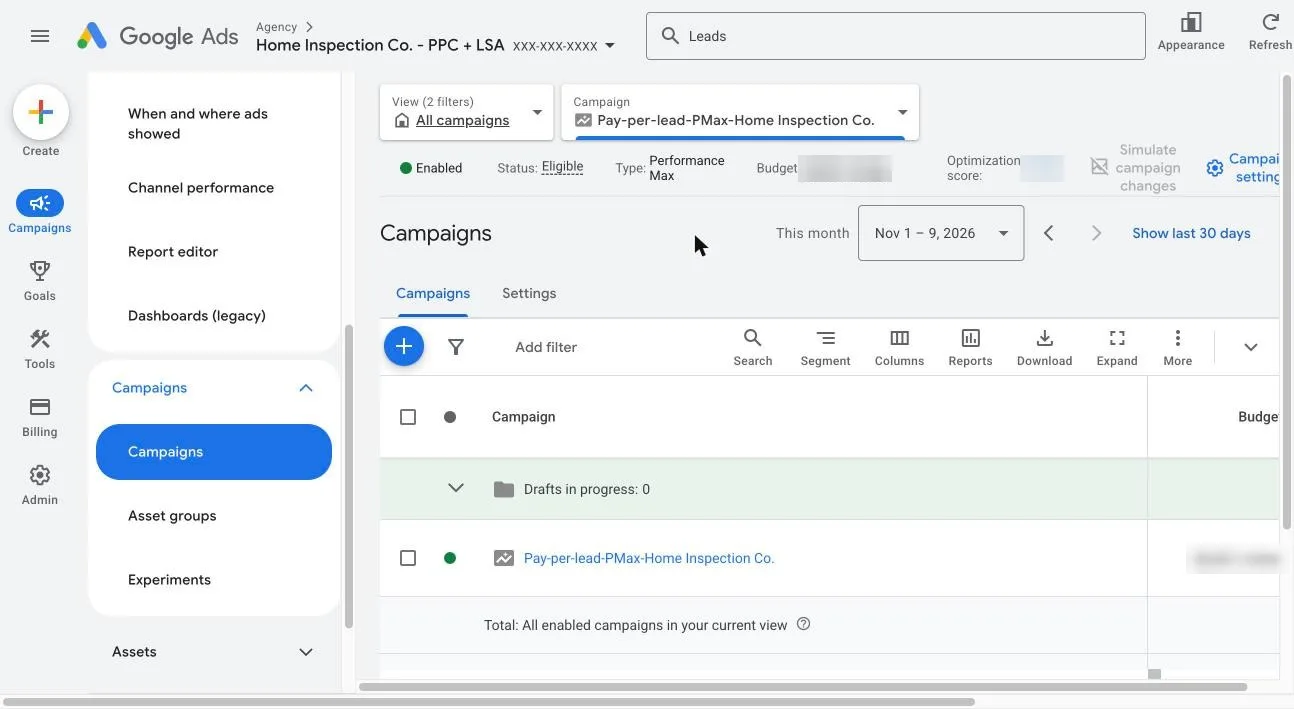
After migration, the LSA shows up as one campaign named “Pay-per-lead-PMax-[business name]” next to any regular PPC campaigns. Its impressions, clicks, spend and conversions now report in the standard Google Ads columns.
1. The campaign list
The LSA is now a Performance Max campaign row with status, optimization score and budget, managed like any other campaign.
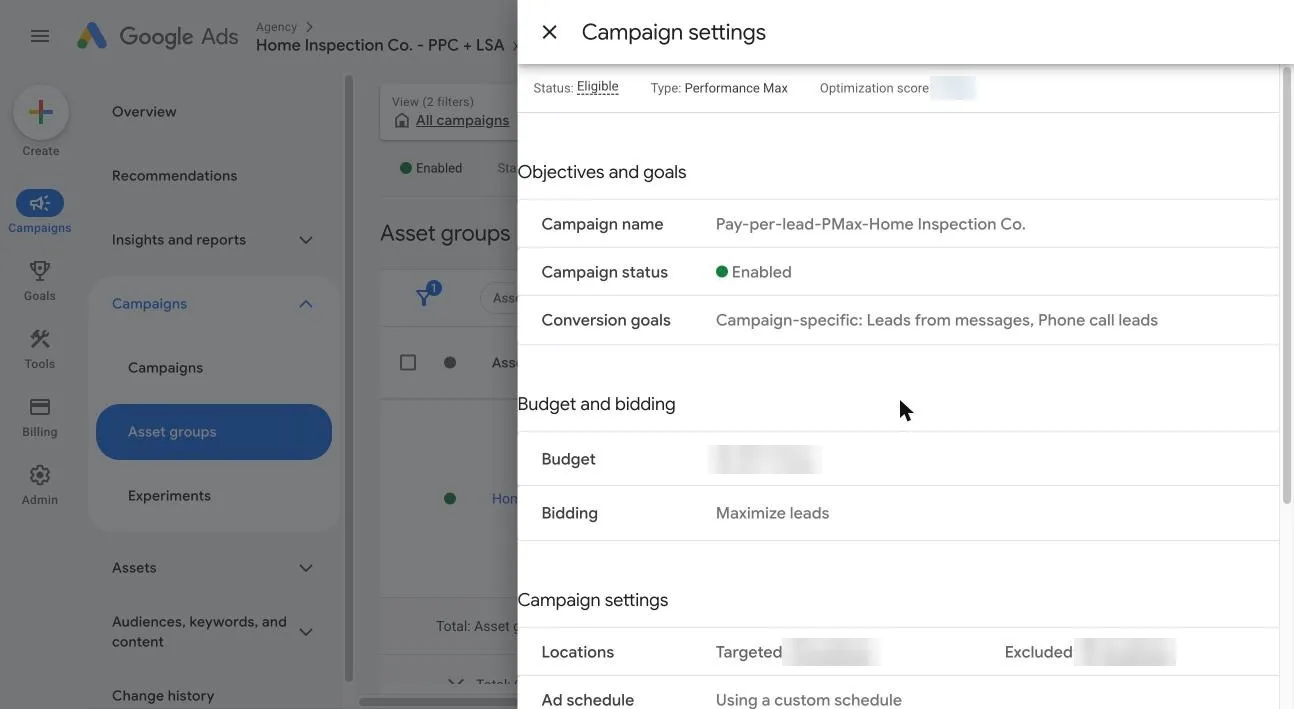
2. Objectives, goals and bidding
Two campaign-specific conversion goals are set automatically: phone call leads and leads from messages. Bidding is Maximize leads. The budget now shows as a daily amount: Google divided the old weekly LSA budget by 7.
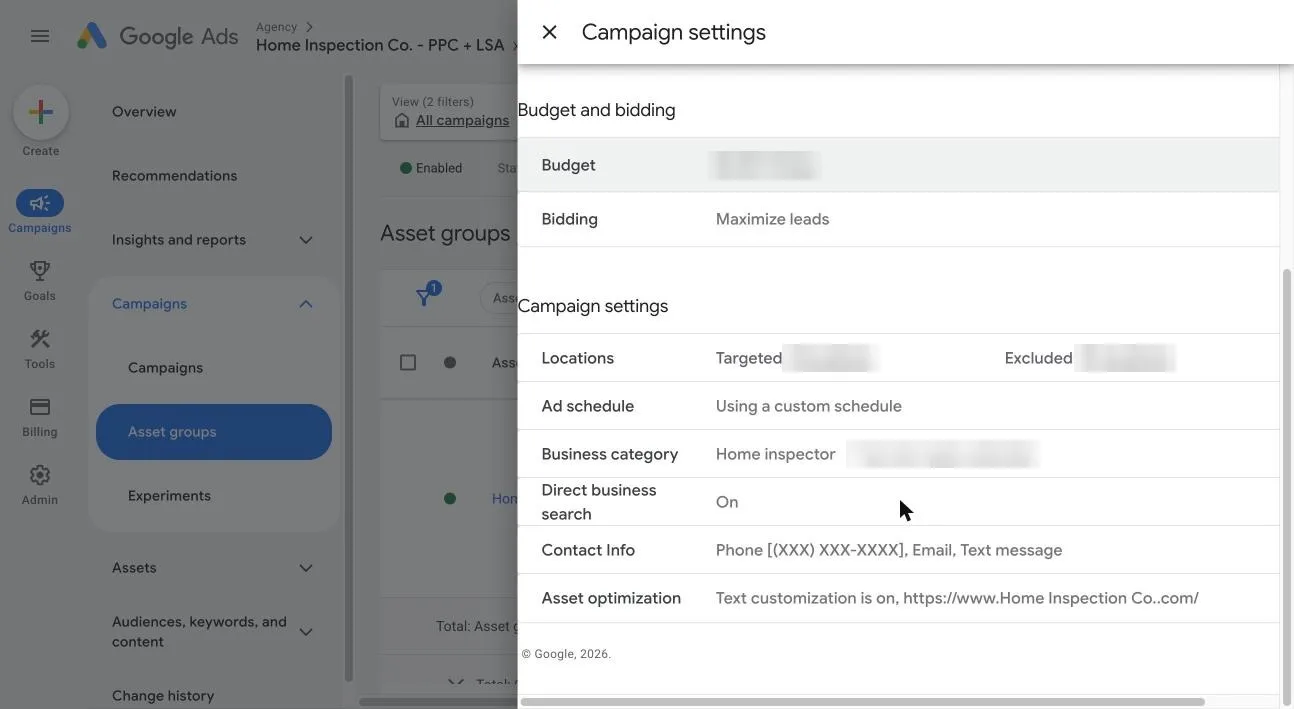
3. Service settings that replaced the LSA profile
The old profile settings now sit in campaign settings:
| Setting | What you see | What it means for you |
|---|---|---|
| Locations | Targeted and excluded areas | The towns or zip codes you inspect in; excluded areas stop leads from places you don’t serve |
| Ad schedule | A custom schedule | The hours your ad runs; keep it to hours someone answers, because missed calls in business hours can bill |
| Business category | Home inspector + selected service types | The inspection jobs you want leads for, like the old LSA job types |
| Direct business search | On | Your ad can show when people search your company by name |
| Contact info | Phone, email, text message | The ways customers can reach you from the ad |
| Asset optimization | Text customization on, website URL | Google may write ad text from your website to match searches |
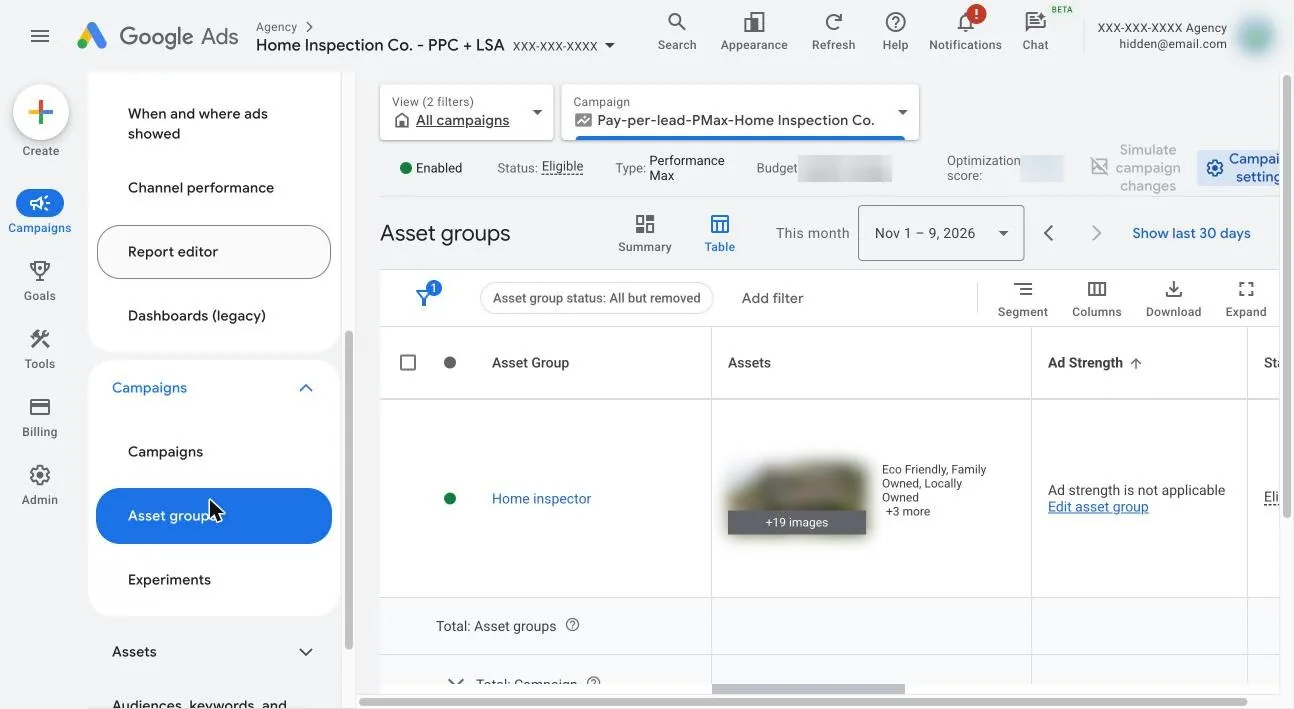
4. The asset group
The profile content now lives in one asset group (“Home inspector”) with 19+ images and business attributes such as Eco Friendly, Family Owned and Locally Owned. Ad strength shows “not applicable”, and no audience signals or search themes are needed for this campaign type.
Leads, customer details and reporting in the new setup
In the old LSA dashboard you opened a lead inbox, saw the customer, replied and pressed a dispute button. In Google Ads all of this now lives in one place: Goals > Leads. Disputes are mostly replaced by automatic credits.
Where to find your leads
- Sign in to Google Ads and open the home inspection account.
- In the left rail, click Goals (the trophy icon).
- In the menu that opens, click Leads. It sits between Summary and Conversions.
- Stay on the Pay-per-lead leads tab. You now see the lead inbox: one row for every call, message and booking.
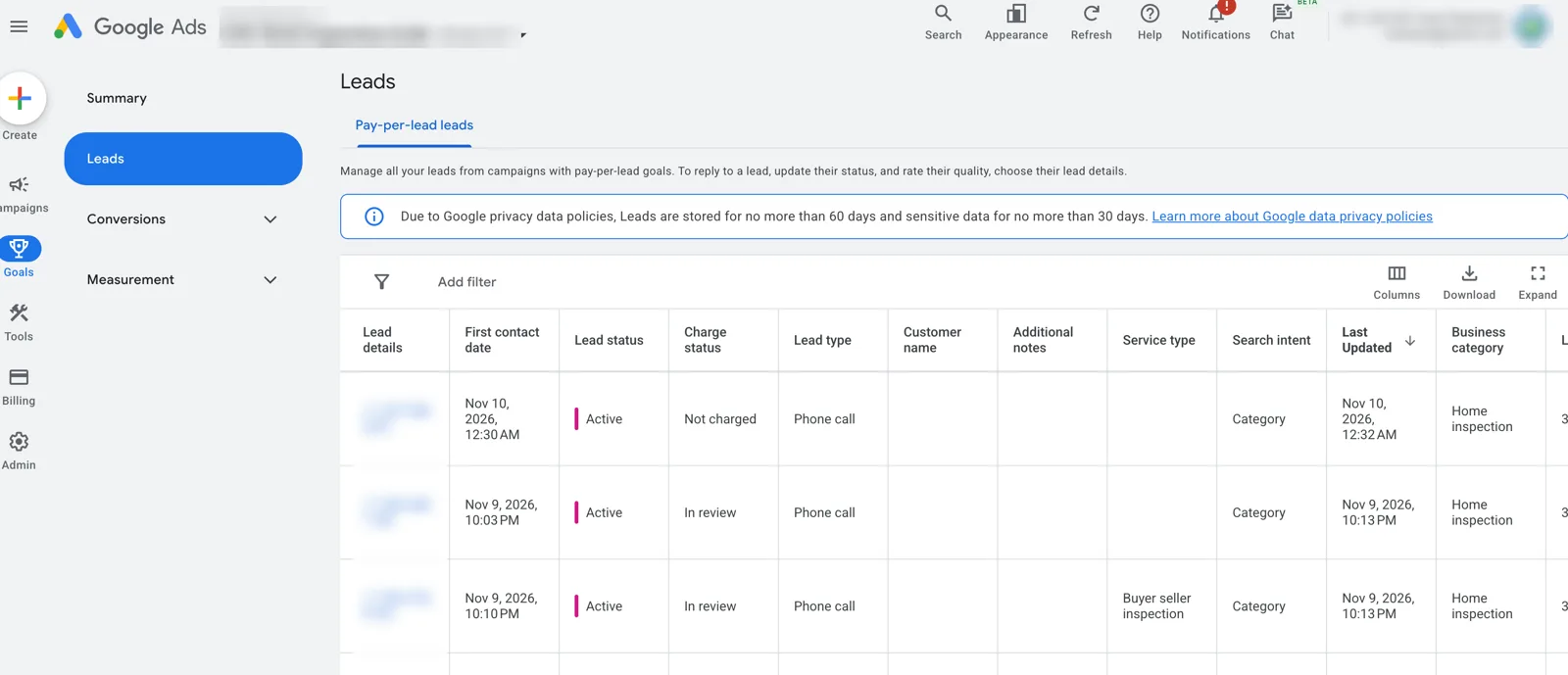
The blue banner at the top is important: Google keeps leads for no more than 60 days and sensitive data (such as recordings) for no more than 30 days. Download or copy anything you need before then.
What each lead shows
Each row is one customer who contacted you. The columns tell you who they are, how they reached you and whether you were charged.
| Column | What it tells you |
|---|---|
| Lead details | The customer’s phone number; click it to open the full lead |
| First contact date | When the customer first called or messaged |
| Lead status | Where the lead is in your workflow, for example Active |
| Charge status | Whether you paid for the lead: Charged, Not charged, In review or Credited |
| Lead type | Phone call, message or booking |
| Customer name | Blank until you or Google fill it in (see below) |
| Additional notes | Your own notes about the lead |
| Service type | The inspection the customer asked about, for example Buyer seller inspection |
| Search intent | “Category” means they searched a general term like “home inspector” rather than your company name |
| Last updated | When the lead last changed |
| Business category | Home inspection |
Use Columns to show or hide columns, Add filter to narrow the list (for example, only charged leads), and Download to save a copy before the 60-day limit.
Adding the customer’s name, email and notes
Click the phone number in the Lead details column. A Lead Details panel opens with three parts: the Lead Summary, Rate this lead, and the Conversation with Lead.
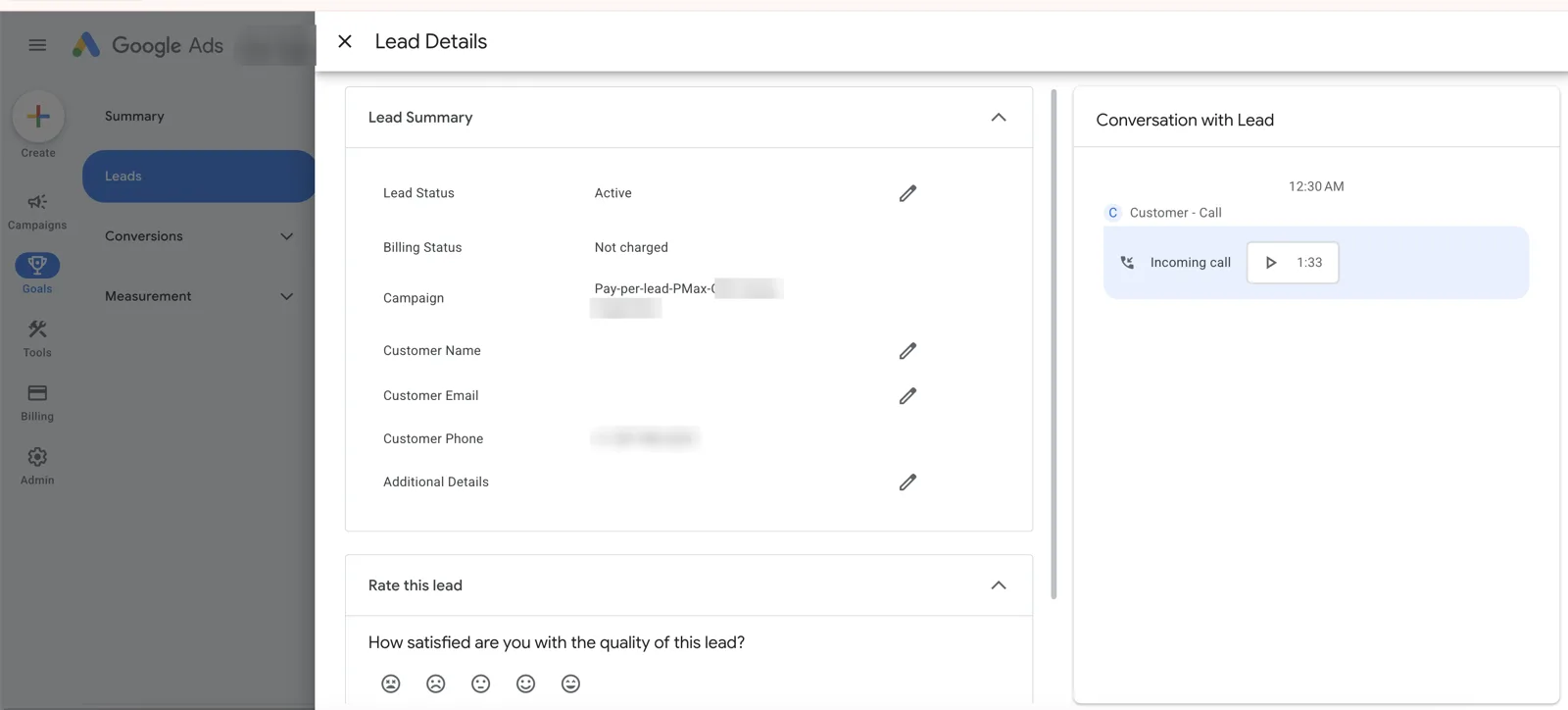
In the Lead Summary, every field with a pencil icon can be edited:
- Customer Name: click the pencil, type the name you got on the call, and save.
- Customer Email: add the email if the customer gave one, so you can send the inspection agreement.
- Additional Details: add notes such as the property address, inspection date or “wants radon test”. These show in the Additional notes column.
- Lead Status: click the pencil to update where the lead stands as you work it.
Billing Status, Campaign and Customer Phone are filled in by Google and cannot be edited.
Replying to customers and listening to calls
- Calls: the Conversation with Lead panel on the right shows each call with its time and length (for example “Incoming call 1:33”). Press the play button to listen to the recording.
- Messages: message leads show the chat history in the same panel, and you can reply by text or email from there, or from the notification email or text.
- Keep what matters: recordings and other sensitive data are deleted after 30 days, so note key details in Additional Details.
Marking a lead Booked or Completed
Open a lead and set its status to Booked when the customer schedules an inspection, and Completed once the job is done. This keeps your pipeline tidy and tells Google which leads turn into real jobs, which helps it find more like them.
How disputes work now
The old “dispute lead” button is replaced by automatic quality checks and credits. Google filters spam, robocalls, wrong numbers, solicitations and instant hang-ups, and treats a repeat caller within 15 days as a duplicate you are not charged for. It reviews lead quality over 30 days and credits invalid leads back to your account balance; automatic credits are not available in EEA countries.
Check the result in the Charge status column:
| Charge status | What it means |
|---|---|
| Charged | A valid lead you paid for |
| Not charged | Filtered out (spam, duplicate, wrong number), so no cost |
| In review | Google is still checking it; the final status can change |
| Credited | You were charged first, then Google refunded it as invalid |
If a lead you think is invalid still shows Charged, open the lead and use Rate this lead: answer “How satisfied are you with the quality of this lead?” by clicking one of the five faces, from very unhappy to very happy. For anything the automatic system misses, contact Google Ads support from the Help menu in your account. Note that automatic credits are not available for some verticals (such as health care) or for advertisers in Europe.
Reporting: where to see results
Managing several LSA accounts? See how to build one Google Ads and call tracking dashboard that labels every lead and shows the real cost per booked job.
- Campaigns page: spend and lead totals, broken down by channel (messages, phone calls, booked appointments). Change the date range at the top right.
- Goals > Conversions > Summary: the primary conversion actions for this campaign (phone call lead, leads from messages, book appointments), whether each is active, and how many campaigns use it. Custom conversion actions are not allowed for pay-per-lead goals.
- Leads page: lead-by-lead detail for checking individual calls, messages and charges.
Sources: Google Ads Help: goals and leads, Google Ads Help: how leads work, Google Ads Help: lead quality and budgets.
Billing and lead changes to watch
The biggest cost risk for a small inspection company is missed calls. Under Google’s lead rules, a missed call can be charged if the caller stays on the line for more than 20 seconds during your business hours, including calls that reach voicemail or an automated greeting. Only calls within both your Google Business Profile hours and your ad schedule count (Local Services Ads Help: how leads work).
- Answered calls: there is no fixed duration rule. Google judges answered calls on the conversation itself, and a call you return to a customer can also count as a valid lead.
- Badge: a single Google Verified badge replaced the Google Guaranteed and Google Screened badges.
- Business Profile: a linked Google Business Profile is required, and reviews come from it.
- Disputes: the manual dispute button is gone; invalid leads are credited automatically (details in the Leads section above).
- Reporting: old LSA performance reports do not carry over, so export them before your migration date.
- Ramp-up: Google says to allow up to two weeks after migration for performance to stabilise, so avoid big changes in that period.
Checklist for home inspection accounts
Frequently asked questions
Are Local Services Ads going away in 2026?
No. LSA ads still show in the same Search and Maps placements and you still pay per lead. What changed is where you manage them: migrated accounts now run as a Performance Max campaign with a pay-per-lead goal inside Google Ads.
Where do I find my LSA leads after the migration?
In Google Ads, click Goals in the left menu, then Leads, and stay on the Pay-per-lead leads tab. Every call, message and booking appears there.
Can I still dispute an LSA lead?
The manual dispute button is gone. Google filters spam, wrong numbers and duplicates automatically and credits invalid leads back. Check the Charge status column and use Rate this lead for anything that still looks wrong.
Why did my LSA budget change to a daily amount?
Google converted the old weekly budget into an average daily budget by dividing it by 7. Your total spend over a week should stay about the same.
Do missed calls cost money now?
They can. A missed call during your business hours can be charged if the caller stays on the line for more than 20 seconds, even if it goes to voicemail. Keep your business hours and ad schedule to times when someone actually picks up.
Sources
- Local Services Ads transition to Performance Max campaigns with pay-per-lead goals
- About pay-per-lead goals for Performance Max campaigns
- How leads work (Local Services Ads Help)
- About Google Verified badge
- Google Ads Help: goals and leads
- Google Ads Help: lead quality and budgets
About the author: Mohit Bannatwala is a Google Ads and Local Services Ads specialist with 8+ years of experience managing LSA accounts for home inspectors, HVAC, plumbing, law firms and other local service businesses. Need help with your migrated LSA account? Request a Google Ads or LSA audit.