Quick answer: A Google Ads + call tracking dashboard pulls ad spend from the Google Ads API and real calls and forms from tools like CallRail or WhatConverts into one screen. It labels every lead (new, spam, existing, booked), shows the true cost per booked appointment for each client, and alerts you before budget is wasted. You can build it with Python, Flask and SQLite on one computer, using only a free Google Ads API developer token.
One screen for every Google Ads client: spend, real leads from call tracking, booked appointments, cost per booking, and alerts before money is wasted.
Why build it
Google Ads tells you how many conversions you got; it does not tell you how many were real new customers, how many were spam calls, existing patients or missed calls, or what a booked appointment actually cost. With dozens of client accounts, checking that by hand in Google Ads, the call tracking tool and a spreadsheet takes hours each week, and problems are found after the money is spent.
The dashboard pulls everything into one place and answers four questions every morning:
- Where is money being wasted right now? Alerts for overspend, no conversions, cost per lead above target, wasted search terms and keywords with no impressions.
- Which leads were real? Every call and form from call tracking is labelled New, Inquiry only, Existing, Wrong/Spam, Missed or Booked, by free rules first and Gemini AI for the rest.
- What does a booked appointment really cost? Spend ÷ booked new appointments from Google Ads leads, per client and per campaign.
- How does each client compare? Cost per lead and per booking against a target range you set, and against other clients in the same industry.
It runs on one Mac (or any computer with Python), stores data in a local SQLite file, reads Google Ads in read-only mode by default, and costs nothing to run beyond the tools you already pay for. All screenshots in this article use the built-in demo mode, so every name and number is made up.
At a glance
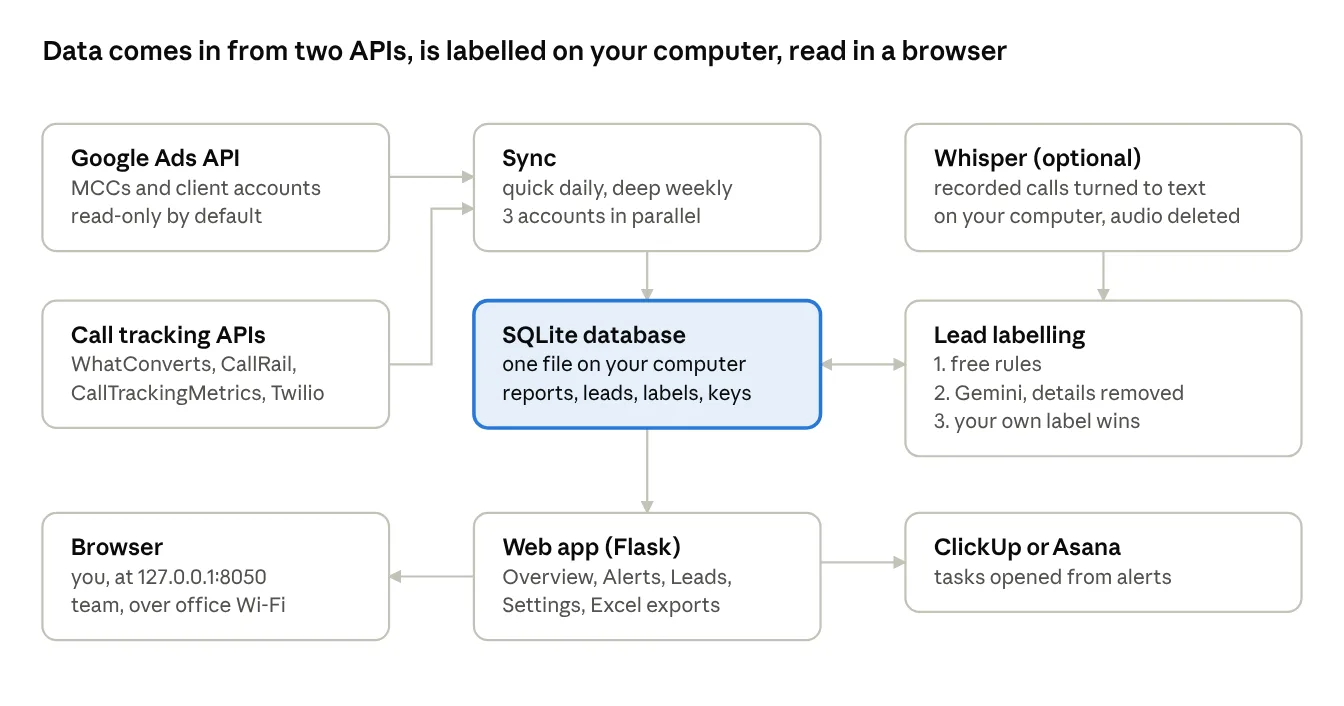
How the parts fit together
Only the two data sources, Gemini and the task tools are outside services; the database, the labelling rules and the optional Whisper transcripts all stay on your own computer.
What you need before you start
The only hard requirement is a Google Ads API developer token; everything else is optional and can be added later.
| What | Why | Where to get it | Cost |
|---|---|---|---|
| Google Ads manager account (MCC) | One login reaches every client account | Google Ads → create a manager account | Free |
| Developer token | Lets your app call the Google Ads API | MCC → Admin → API Center | Free |
| OAuth client (Desktop app) + refresh token | Signs in as you, read-only | Google Cloud Console → APIs & Services → Credentials | Free |
| Python 3.9+ | Runs the dashboard | python.org or the Mac’s built-in Python | Free |
| Call tracking: WhatConverts, CallRail, CallTrackingMetrics or Twilio | Real calls and forms per client | Each tool’s API key page | Your existing plan |
| Gemini API key (optional) | AI labels for calls and forms | aistudio.google.com/apikey | Free tier available |
| ClickUp or Asana (optional) | Turn alerts into tasks | Personal API token in each tool | Your existing plan |
Know your Google Ads API access level before you build. A new developer token starts at Explorer access, which allows about 2,880 requests per day. One full sync of ~75 accounts uses roughly 450–1,000 requests, so two or three syncs a day can hit the limit. Basic access allows 15,000 requests a day; apply in Google Cloud Console → Google Ads API → Upgrade access level (brand verification comes first). See Google’s access levels page.
OAuth consent screen in “Testing” mode only lets listed test users sign in, and their logins expire after 7 days. Add every Google account you will connect as a test user, or publish the app after filling in its Branding page (for a small internal tool, Google then shows an “unverified app” warning you can click past).
Step-by-step setup
From an empty Mac to the first sync takes about an hour, most of it waiting for Google to issue the developer token.
- Get the developer token. In your MCC open Admin → API Center, accept the terms and copy the token.
- Create the OAuth client. In Google Cloud Console create a project, enable the Google Ads API, set up the OAuth consent screen (add yourself as a test user) and create credentials of type Desktop app.
- Get a refresh token. Run Google’s generate_user_credentials example from the google-ads Python library once and sign in with the Google account that can open the MCC.
- Create the project folder and a virtual environment.
mkdir ads-dashboard && cd ads-dashboard python3 -m venv .venv && source .venv/bin/activate pip install flask google-ads google-auth-oauthlib python-dotenv requests- Write google-ads.yaml with developer_token, client_id, client_secret, refresh_token, login_customer_id (your MCC, digits only) and use_proto_plus: True.
- Write .env for everything else: MCC_CUSTOMER_ID, call tracking keys, GEMINI_API_KEY, DASHBOARD_PASSWORD, HOST, PORT, sync windows. Keep both files out of any shared folder or Git repo.
- Start it with python app.py and open http://127.0.0.1:8050. Click Sync now once; the first sync downloads 90 days for every account.
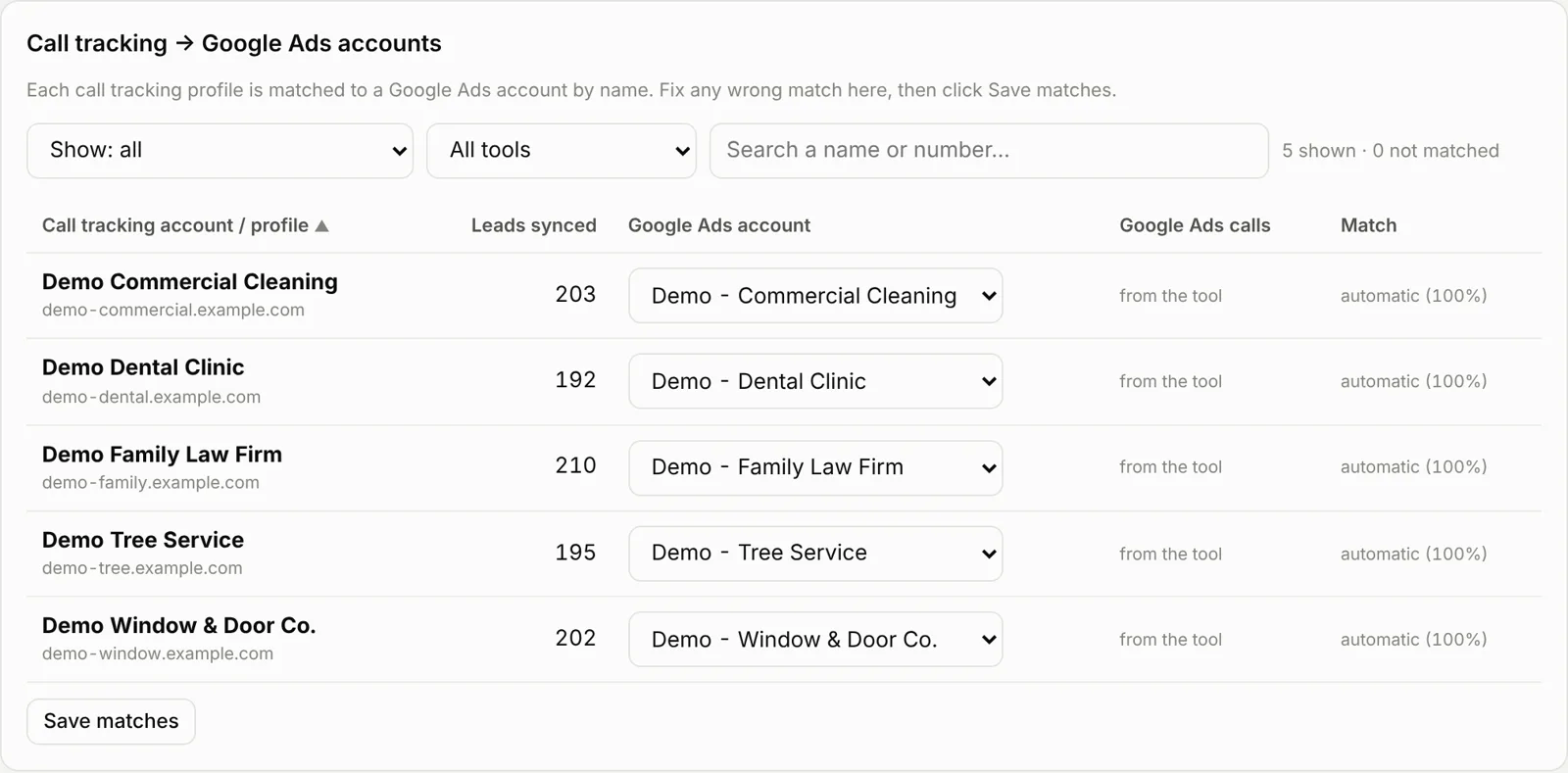
- Match call tracking profiles to Google Ads accounts in Settings → Call tracking matching (most match automatically by name), then sync again.
- Optional: add a Desktop launcher so a double-click starts it every morning:
#!/bin/zsh lsof -ti tcp:8050 | xargs kill -9 2>/dev/null cd ~/Desktop/ads-dashboard && source .venv/bin/activate (sleep 4; open http://127.0.0.1:8050) & caffeinate -i python app.pySave it as Start Dashboard.command and run chmod +x on it. caffeinate -i stops the Mac sleeping in the middle of a sync.
Feature tour
Seven tabs cover the daily work: Overview, Alerts, Leads & ROI, Keywords, Search terms, Reports and Settings. A picker at the top narrows everything to one agency or one client, and a search box answers plain questions (“Which campaigns are active for the Dental Clinic?”), with an Ask Gemini button for open questions such as why inquiries are not turning into bookings.
Overview: what needs attention today
The first screen shows the most urgent alerts, then the headline numbers for the chosen dates, each compared with the period just before it.
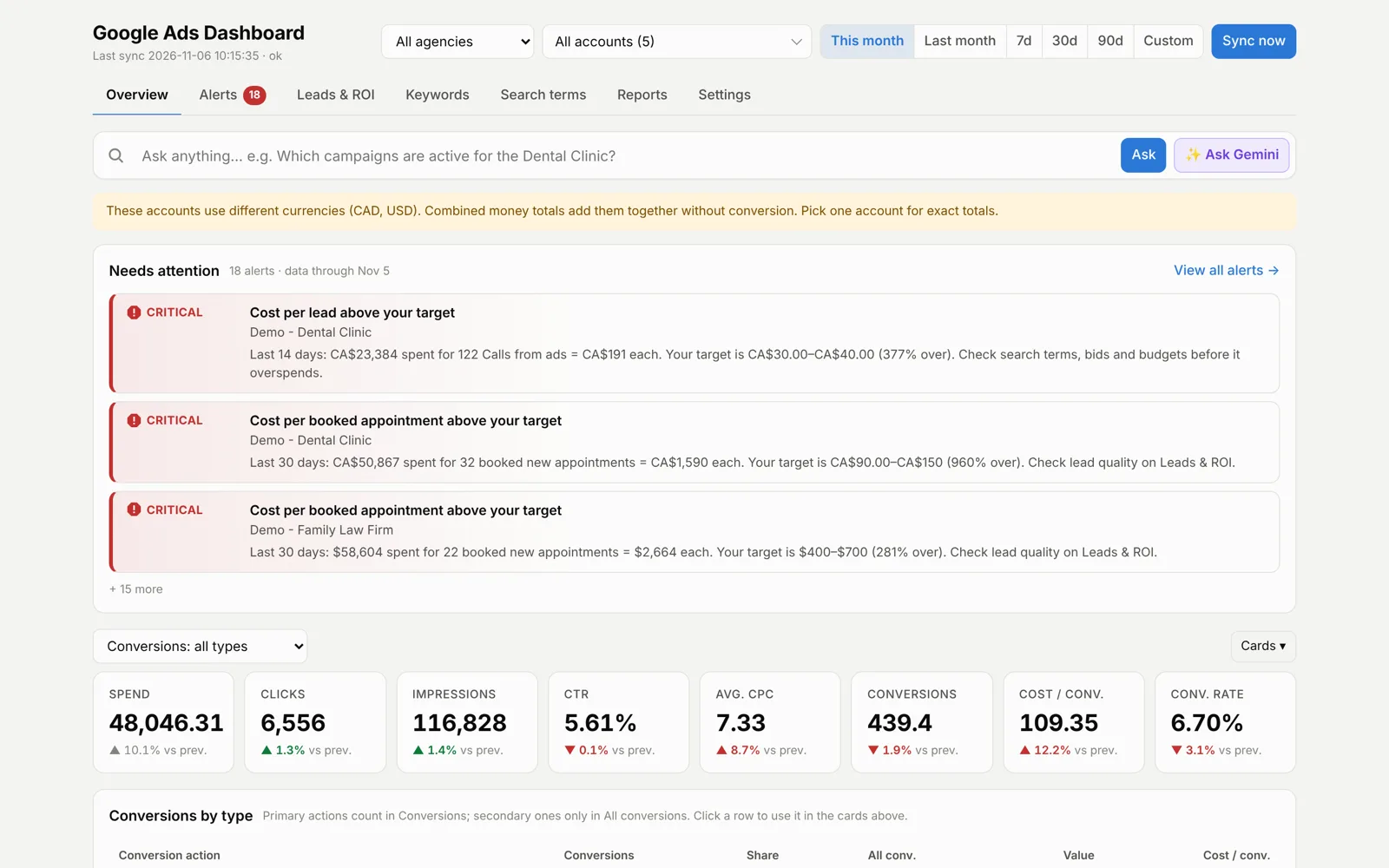
Cards you choose, and conversions by type
Cards ▾ adds phone calls, search impression share, impression share lost to budget or rank, top impression %, conversion value or ROAS. The Conversions dropdown switches every conversion card to one conversion action, such as Calls from ads or Contact form submit.


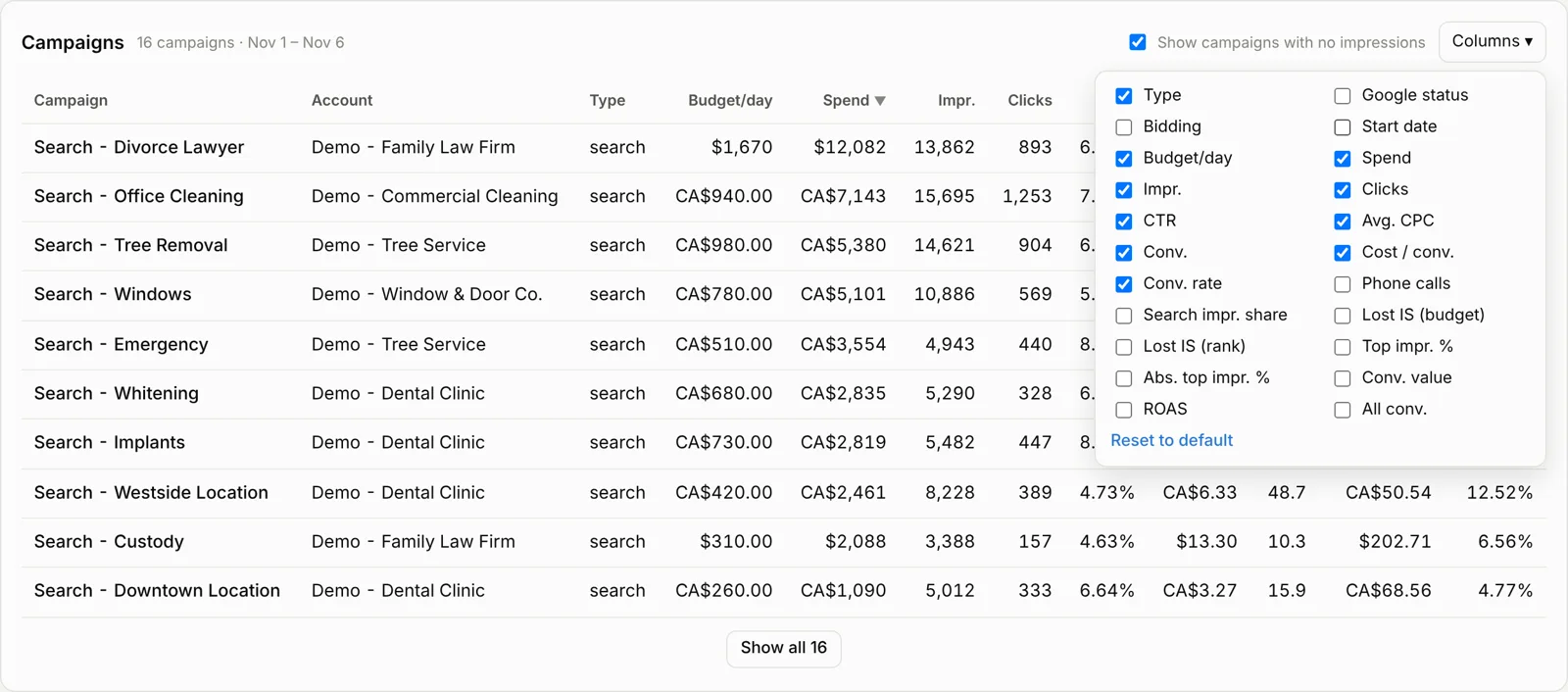
Campaigns, with the columns you want
Columns ▾ picks the campaign table columns. Enabled campaigns with no impressions in the period (just launched, pending review, not eligible) stay visible with Google’s reason, so a stalled launch is not missed.
Alerts that can become tasks
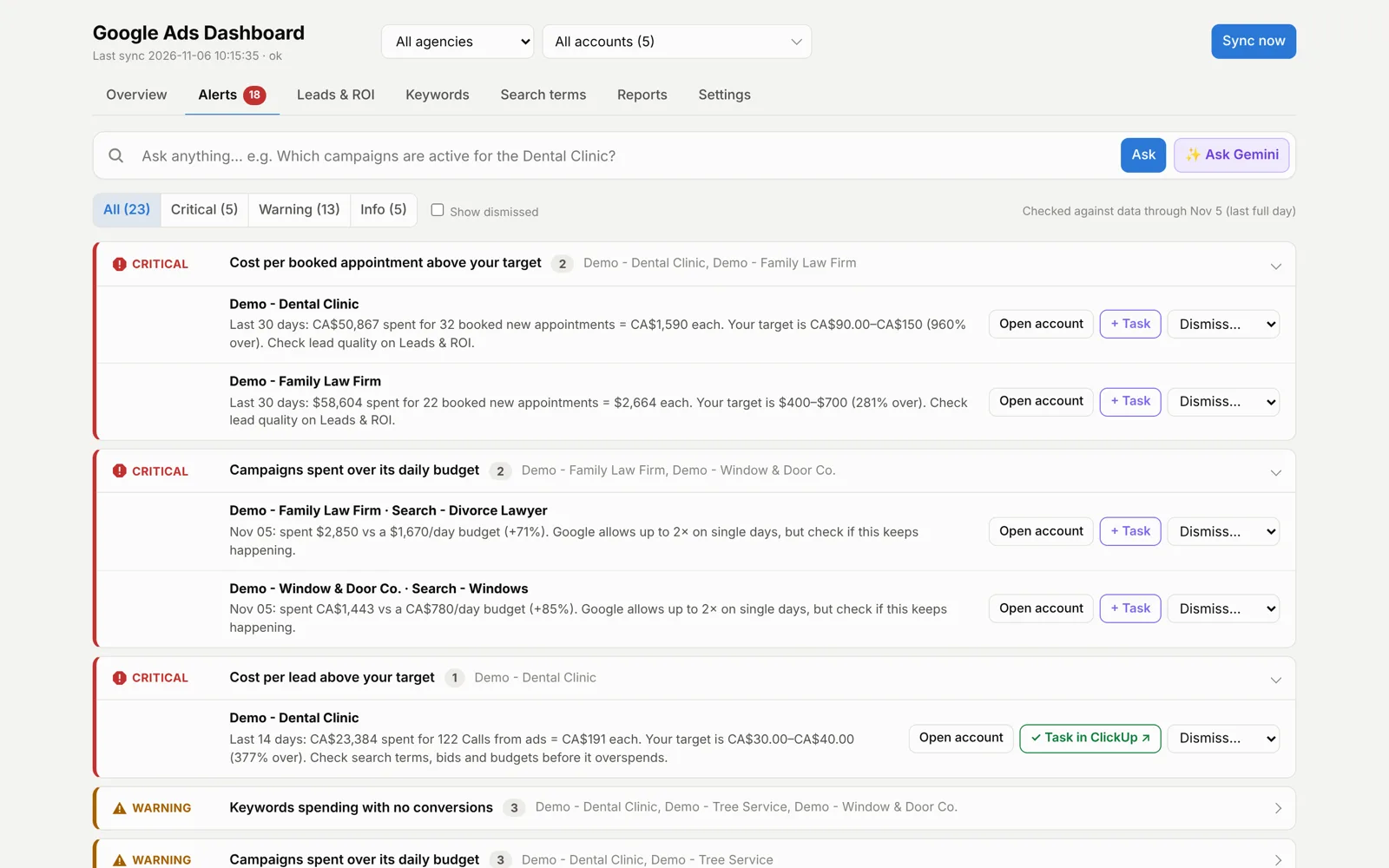
Alerts are grouped by type and severity: overspend against the daily or monthly budget, no conversions, keywords and search terms spending without results, cost per lead above target, data out of date. + Task sends one to ClickUp or Asana with the numbers and the steps to fix it; Dismiss hides it for a day, a week or for good.
Leads & ROI: real leads, not just conversions
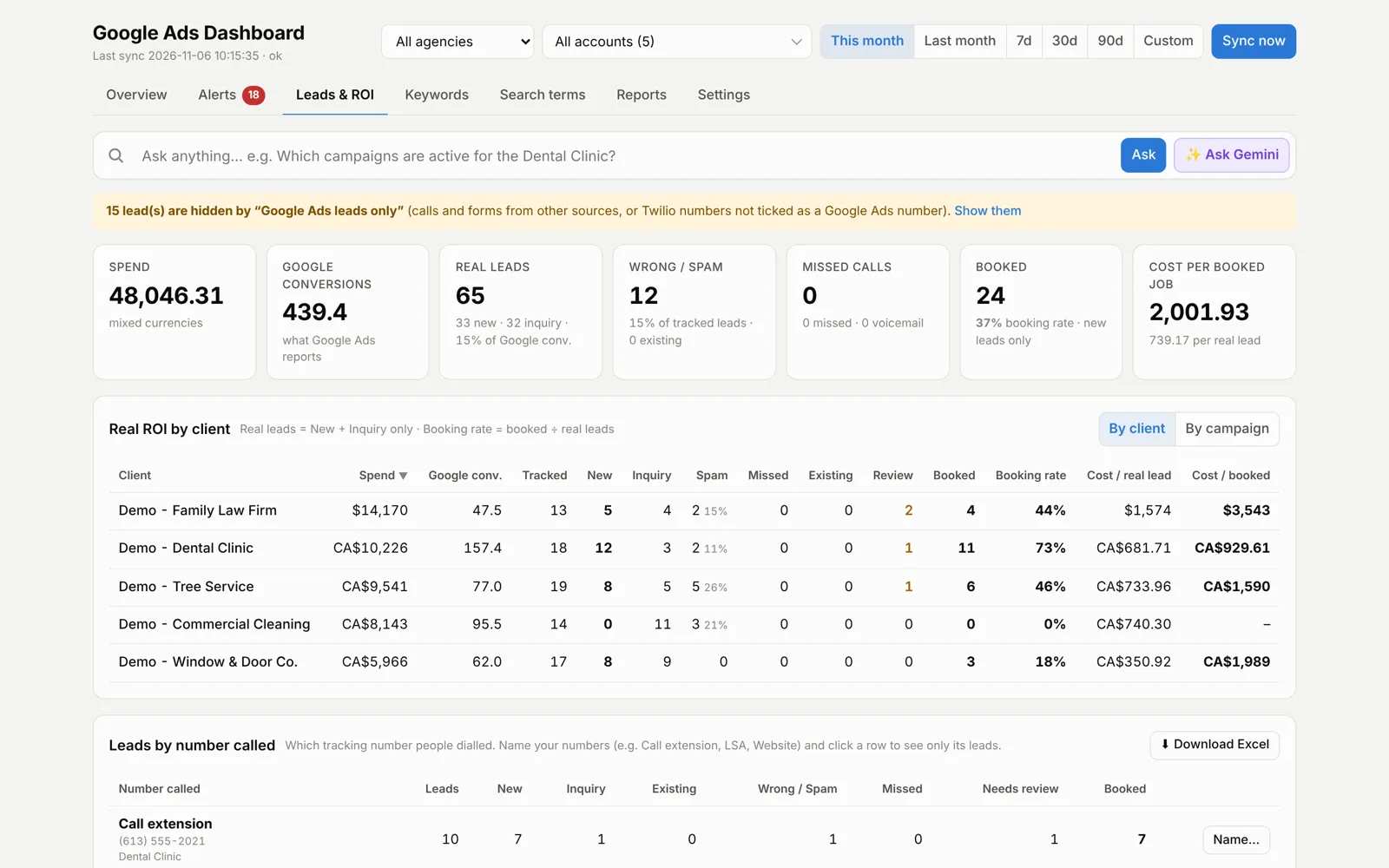
Google Ads conversions sit next to what call tracking actually recorded: real leads (New + Inquiry), spam, missed calls, booked appointments and cost per booked job, per client or per campaign.
Leads by number called
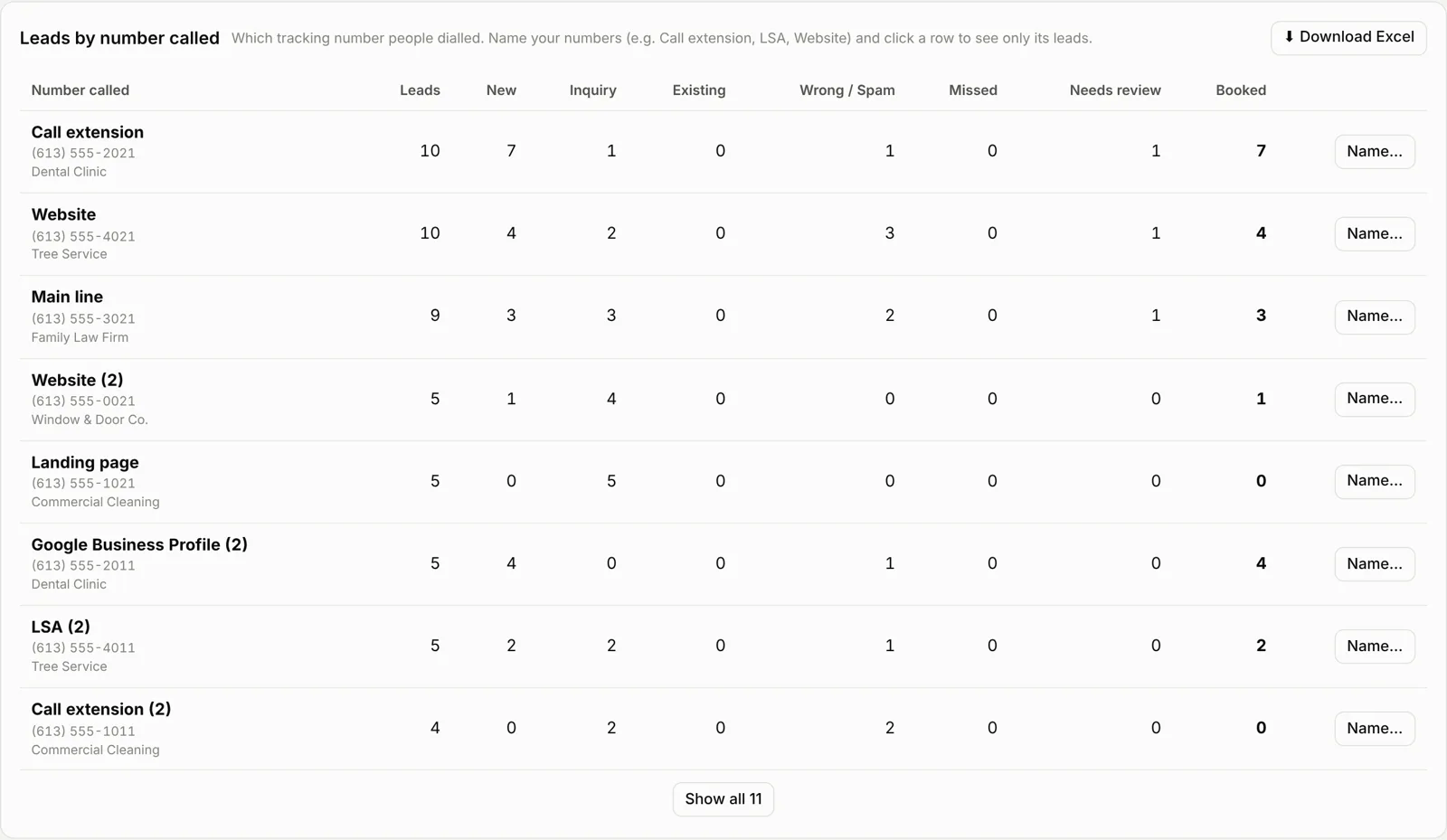
Each tracking number gets a name (Call extension, Website, LSA, Google Business Profile), so you can see which source sends real patients and which sends spam. Click a row to filter everything to that number, or download it as Excel.
Every lead, labelled with a reason
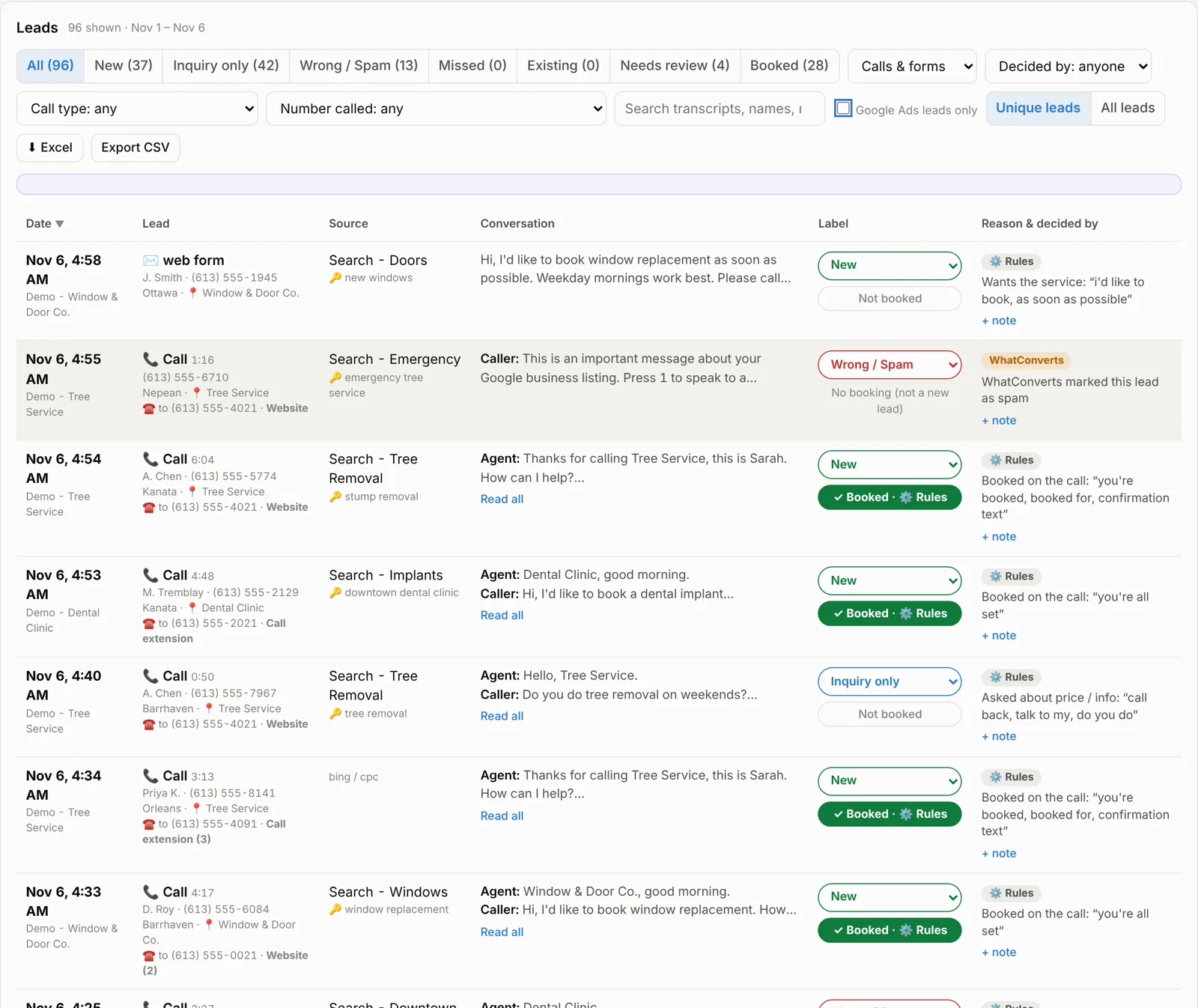
Each call or form shows the conversation, a label, whether it was booked, and who decided: the free rules, Gemini, the call tracking tool, or you. Change any label with one click; your choice always wins and is kept across syncs.
Search terms and negatives
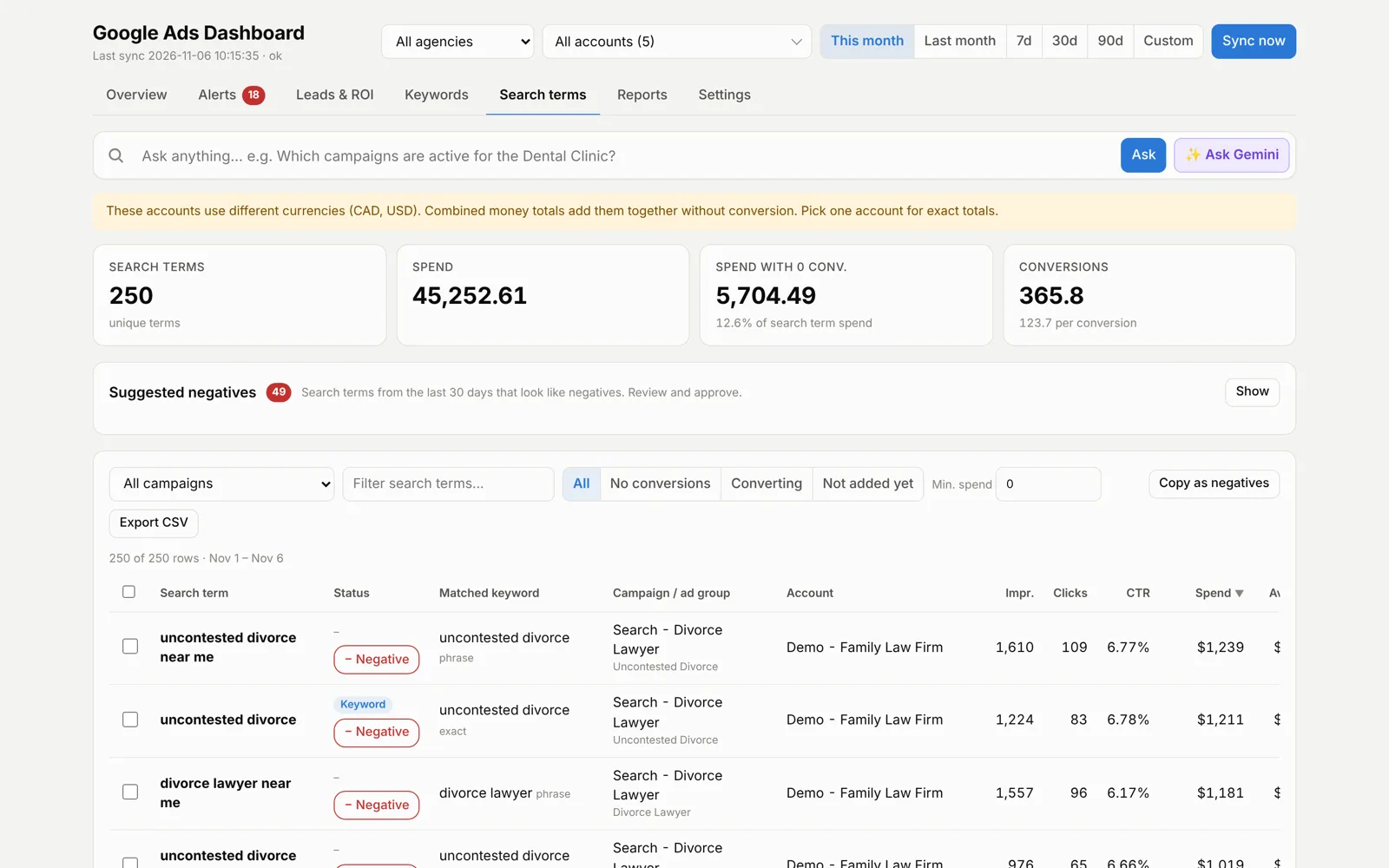
The Search terms tab shows spend with zero conversions and suggests negatives to review. Changes to Google Ads stay off unless you turn them on, and every change asks for confirmation and can be undone.
Cost targets, industry benchmarks and managed accounts
Every client gets its own ideal range for cost per lead and cost per booked appointment, and the dashboard warns the moment a client drifts above it.
Cost targets per client
Set a range once per industry (for example Dentist: $30–40 per lead, $90–150 per booking) and pick an industry for each client, or type a client’s own numbers to override the preset. “A lead is” chooses which conversion counts, so a dental client can be judged on Calls from ads only. The Now columns show the last 14 days (leads) and 30 days (bookings) in green, red or orange.
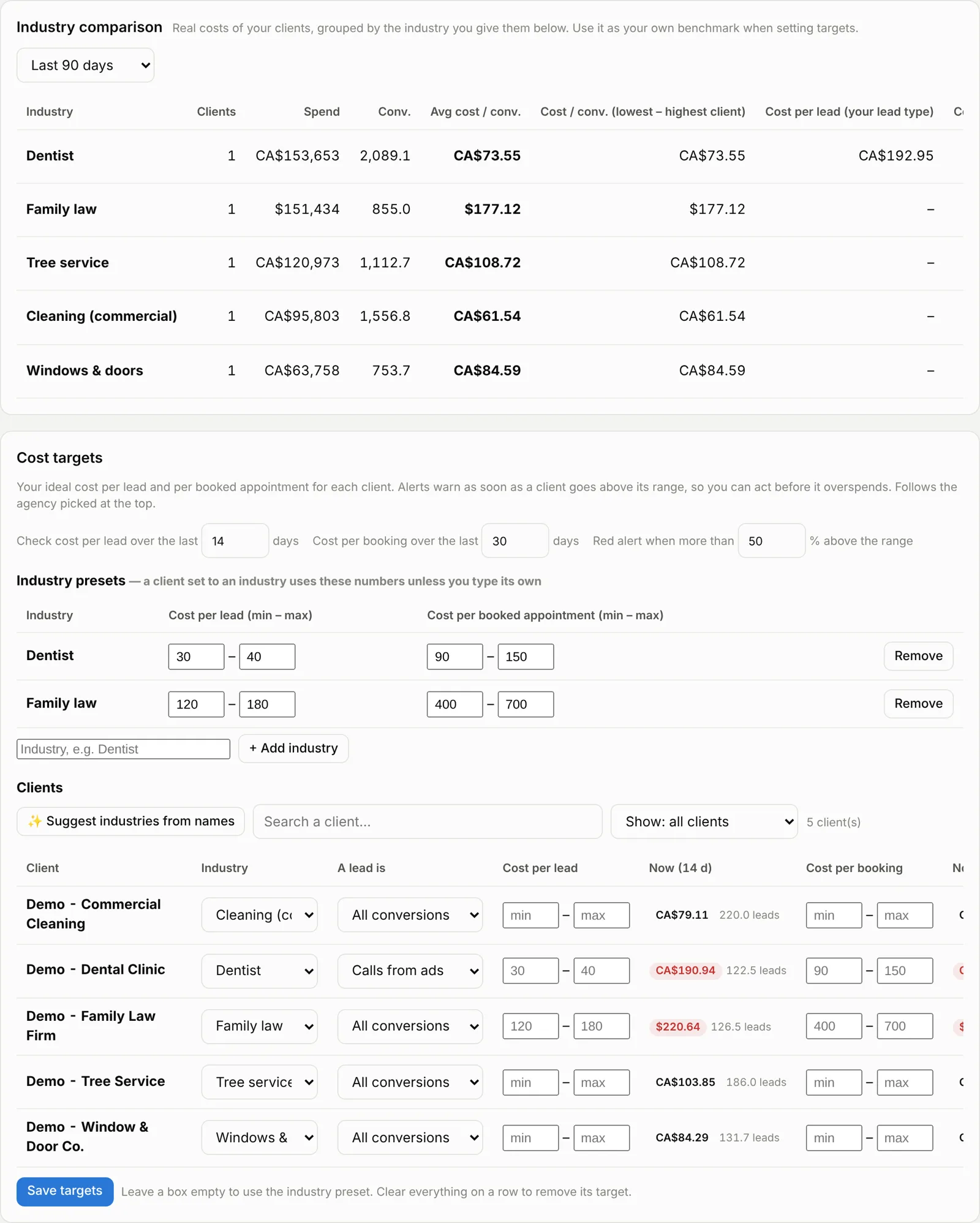
The alert rules are simple and explainable:
| Situation | Alert |
|---|---|
| Cost per lead above the top of the range | Warning, with how far over |
| More than 50% above the range | Critical |
| Spent more than one lead’s worth with no leads | Warning or critical |
| Cost per booked new appointment above the range | Warning or critical |
| Spent more than one booking’s worth with no bookings | Warning |
| Cost per lead below the range (3+ leads) | Info: check for double counting |
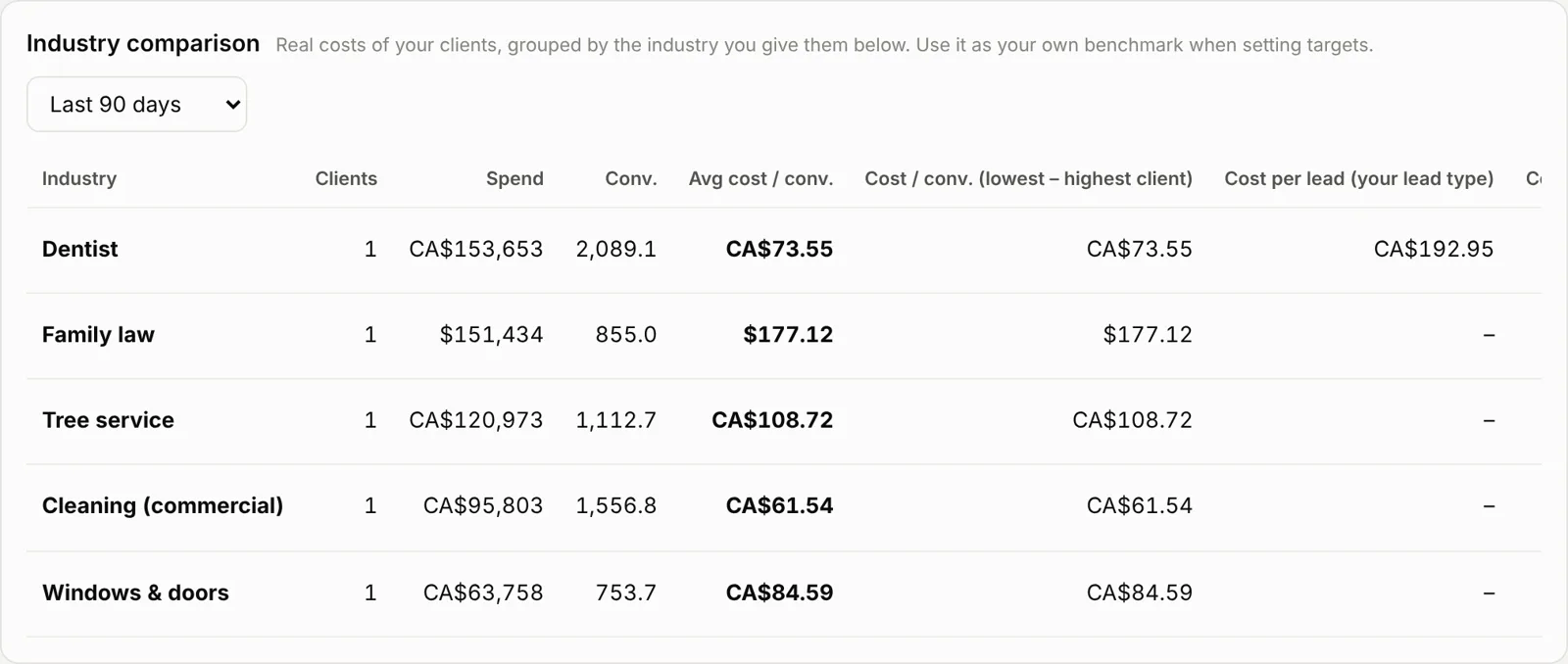
Industry comparison
Once clients have an industry, the comparison table shows, per industry, average cost per conversion, the lowest-to-highest client, cost per real lead, cost per booking, CPC and conversion rate. Click an industry to see each client side by side. It turns your own accounts into a benchmark for setting targets and for case studies.
Managed accounts
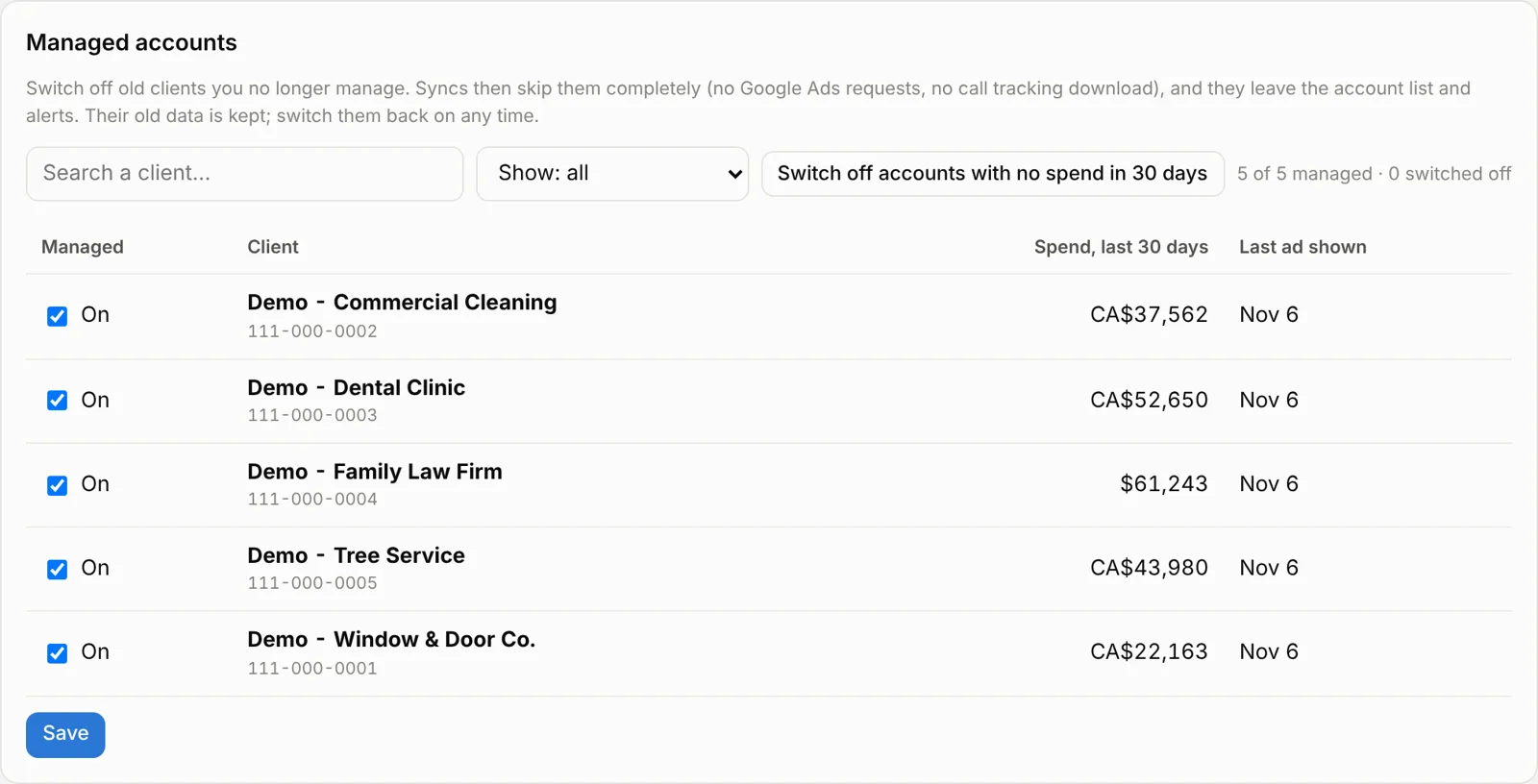
Most MCCs still hold old clients you no longer manage. Switch them off once: syncs then skip them entirely (no Google Ads requests, no call tracking download), and they leave the account list and alerts. One button switches off every account with no spend in 30 days; old data is kept and they can be switched back on.
Running several agencies from one dashboard
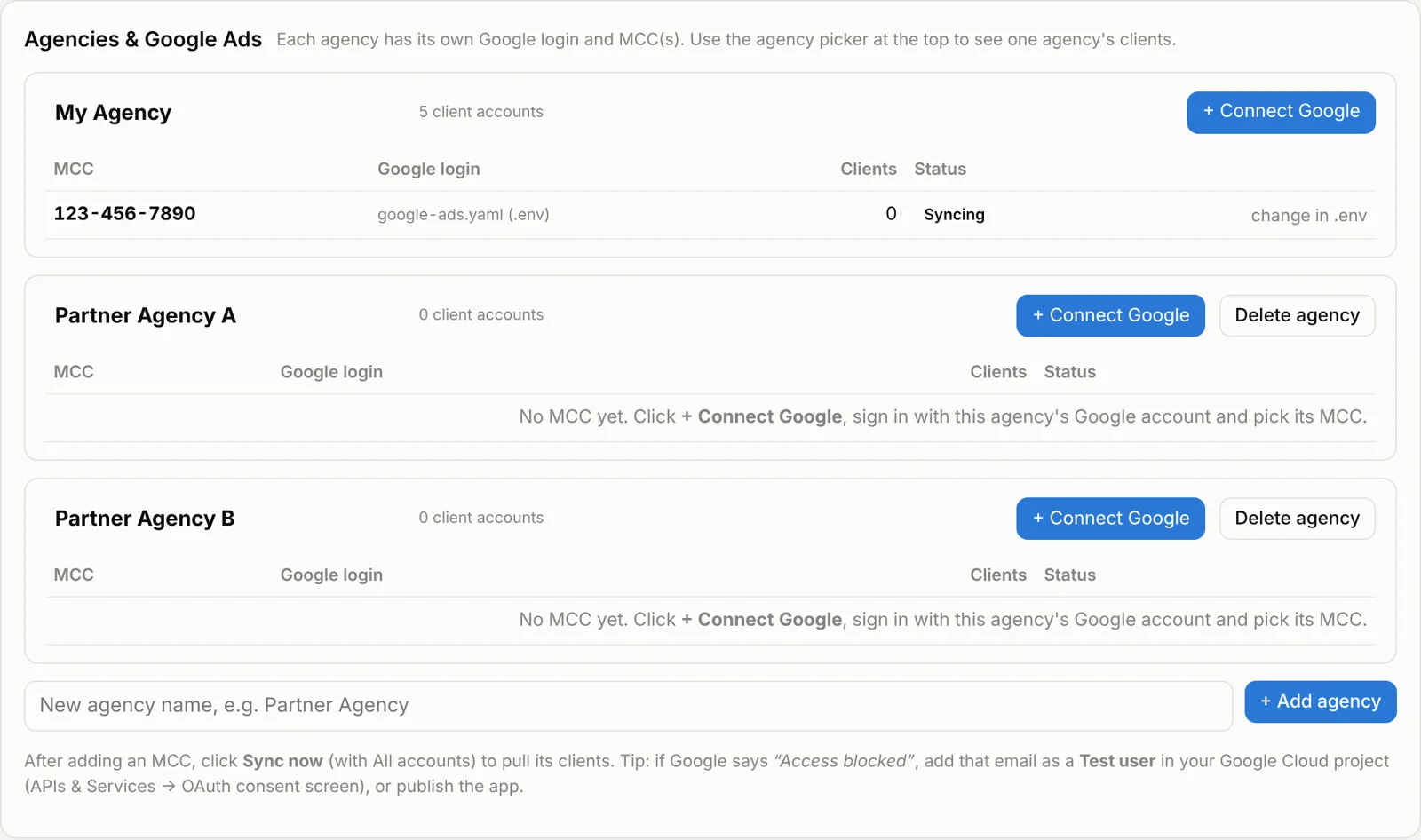
If you work with partner agencies, each one gets its own Google login, MCCs, call tracking tool and task tool, and the agency picker at the top filters every screen, Settings included.
Connect Google from the browser
+ Connect Google on an agency opens Google’s sign-in; after Allow, you pick which MCC to add and the next sync pulls its clients. The refresh token is stored in the local database, so no one edits YAML files. Google’s desktop OAuth flow only returns to 127.0.0.1, so on a colleague’s laptop the last page “refuses to connect”: they copy that address (it holds a one-time code) and paste it into the dashboard, which finishes the sign-in on the main computer.
Call tracking tools per agency
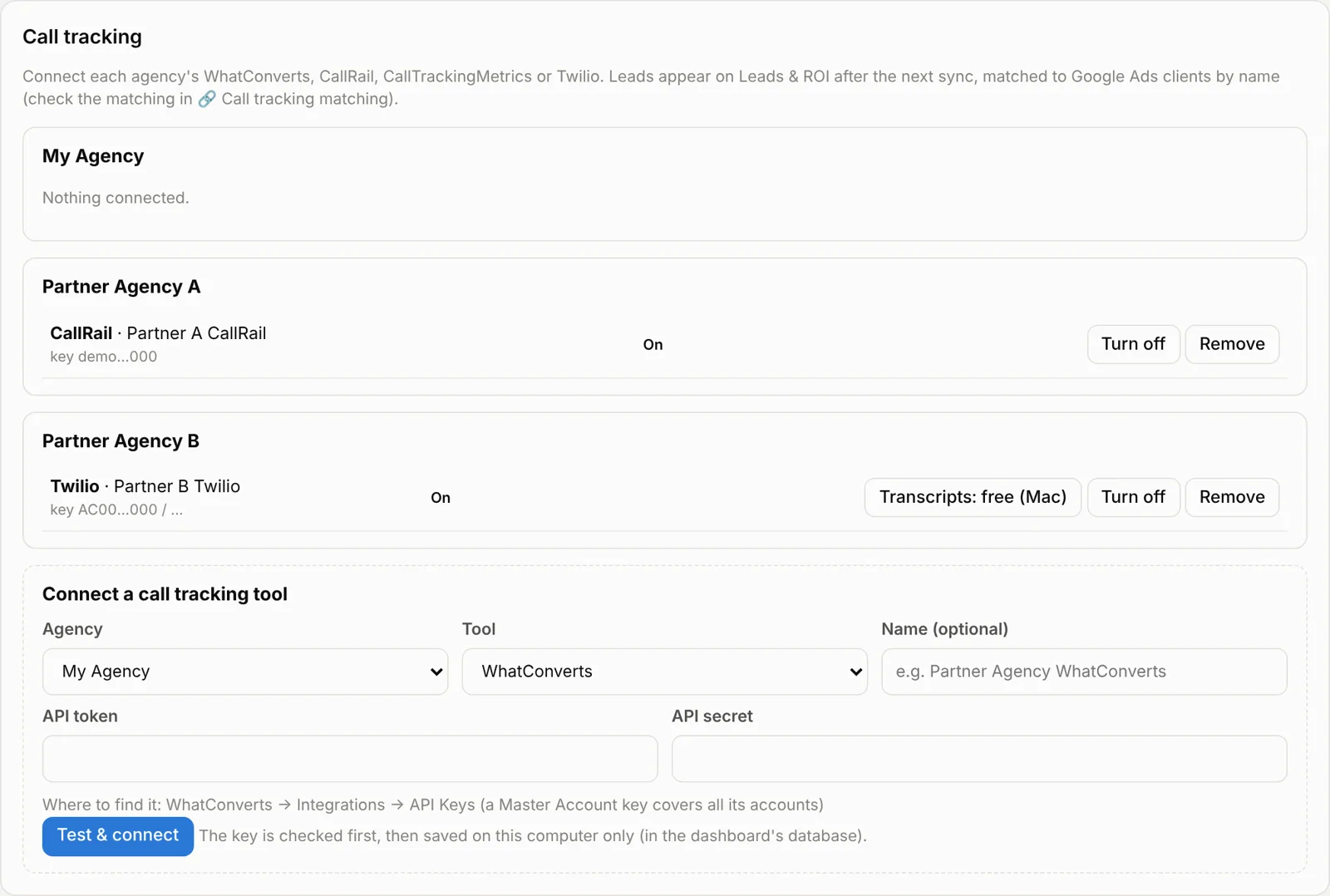
WhatConverts, CallRail, CallTrackingMetrics and Twilio connect with their API keys; the key is tested before it is saved. A client only uses the tools of its own agency, and only profiles matched to a managed Google Ads client are downloaded, which keeps big call tracking accounts (hundreds of companies, thousands of calls a month) fast. Twilio does not record where a caller came from, so each Twilio number can be ticked as a Google Ads number in the matching screen.
Task tools and the task log
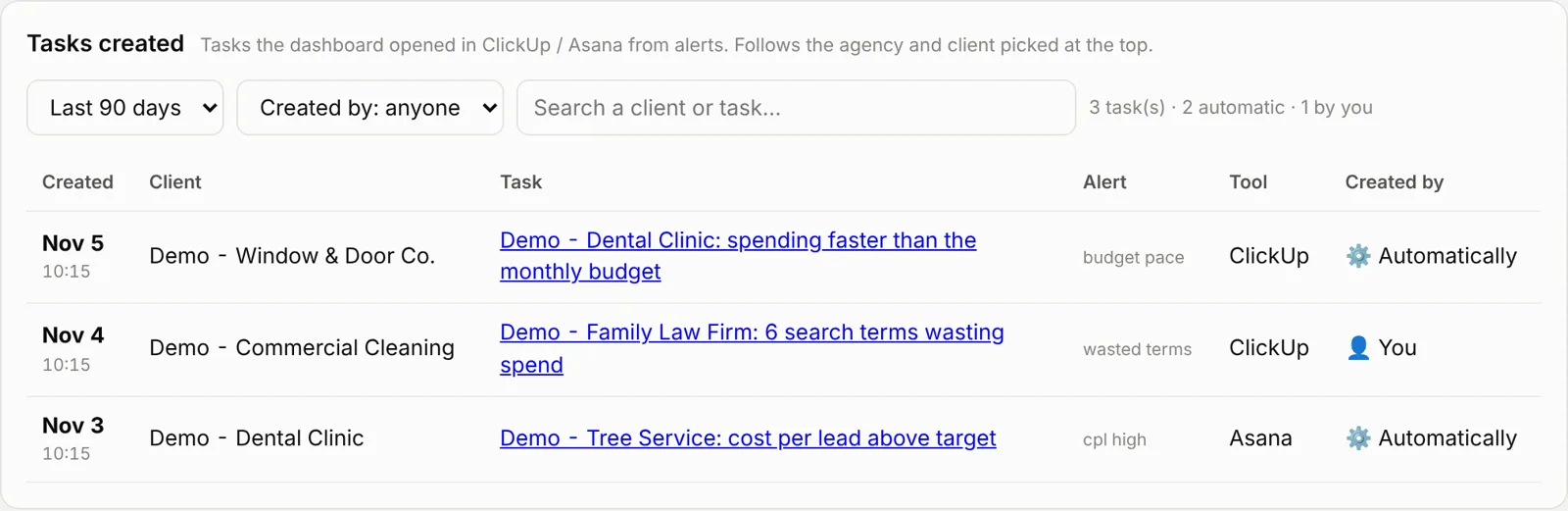
Each agency picks ClickUp or Asana and where tasks go. Settings → Tasks created lists every task the dashboard opened, automatically or by you, for the selected agency or client.
How syncing works
A daily sync re-downloads only the days that can still change, so it uses about half the API requests of a full sync and finishes in minutes.
| Quick sync (every normal sync) | Deep sync (once every 7 days) | |
|---|---|---|
| Campaign totals | last 35 days (late conversions) | last 90 days |
| Keywords, search terms, ad groups, conversion actions | last 10 days | last 90 days |
| Hours, devices, locations, ads | skipped | last 90 days |
| Leads from call tracking | last 10 days | last 90 days |
| “Is this account paused?” check | reuses last result | checked again |
| Requests per account | about 7 | about 13 |
A client synced for the first time always gets its full 90 days, even inside a quick sync. Three accounts sync in parallel. Sync this client and Sync selected (tick rows in the accounts table) sync only those accounts, always quick.
When Google answers “Resource has been exhausted”, the sync stops at once instead of retrying every account, Google Ads syncing pauses until the reset time Google gives, and call tracking keeps syncing. Each sync reports how many requests it used and the total for the day. Data is never deleted: each sync replaces only its own date window, and older days stay.
Lead quality: rules, Gemini and free transcripts
Every lead is labelled in three passes, cheapest first, and a label you set by hand always wins.
- Free rules. Phrase lists and call facts catch the obvious cases: hang-ups and missed calls, voicemails, robocalls, “you’re booked”, price-only questions, empty forms. Each rule writes its reason, such as Booked on the call: “you’re all set”.
- Gemini. Calls and forms with text go to Gemini in batches of up to 10, with names, phone numbers, emails and addresses removed first. It returns the label, whether an appointment was booked, a confidence and a one-line reason. Each lead is checked once; a daily cap and automatic retries keep it inside the free tier.
- You. Any label can be changed in one click and is never overwritten by a later sync.
Bookings count only for new leads. An existing patient booking a check-up is not new business, so it stays out of booked counts, booking rate and cost per booking.
Long calls are kept whole. Calls up to about 25 minutes go to Gemini in full. Longer ones keep the start, the end and every line about booking, times, new patients and prices, because the booking is usually in the middle of the call.
Free transcripts on the Mac. Twilio and some CallTrackingMetrics accounts record calls without transcribing them. The dashboard downloads each recorded call, turns it into text with the open-source Whisper model (pip install faster-whisper) on the Mac itself, deletes the audio and lets Gemini label the text. It runs in the background after the sync on two processor cores, so video calls stay smooth. Paid alternatives (Twilio Voice Intelligence, Deepgram, AssemblyAI) are faster but send the audio to a third party.
Privacy. Keys stay in .env, google-ads.yaml and the local database. On Gemini’s free tier Google may use what you send to improve its products, which is why personal details are removed first; turn on billing for client calls you care about.
Sharing it with the team
One computer runs the dashboard and colleagues on the same office Wi-Fi open it in their browser; nothing needs installing on their laptops.
- In .env set HOST=0.0.0.0 and a strong DASHBOARD_PASSWORD (the login prompt protects every page).
- Restart, then find the computer’s address with ipconfig getifaddr en0 (for example 192.168.1.45).
- Colleagues open http://192.168.1.45:8050 and log in. If it does not load, allow incoming connections for Python in the Mac firewall, and check both laptops are on the same network (guest Wi-Fi usually blocks this).
Two limits come with this setup: it works only while the host computer is awake with the dashboard running, and the local address can change between days. Moving it to a small server with a domain and HTTPS removes both, but needs a 4 GB RAM server if Whisper transcripts run there, and a “Web application” OAuth client in place of the desktop one.
Lessons learned
Most of the build time went into a handful of surprises; knowing them up front saves days.
| Surprise | What happened | Fix |
|---|---|---|
| Google Ads daily request limit | Several full syncs in one day hit Explorer access’s 2,880 requests; Google blocked syncing for about 19 hours | Quick syncs, skip unmanaged accounts, stop at the first 429, apply for Basic access early |
| “Access blocked” at sign-in | OAuth app in Testing mode, the Google account was not a test user | Add each account as a test user, or publish the app |
| Real leads fewer than Google conversions | Repeat callers, spam and existing patients all count as Google conversions | Compare against call tracking, offer a Unique / All leads switch |
| Booked count did not match | Existing patients booking check-ups were counted | Count bookings for new leads only |
| A 13-minute call labelled “Inquiry only” | Only the start and end of long calls were sent to the AI; the booking was in the middle | Send calls in full up to ~25 minutes, keep booking lines when trimming |
| A sync ran for an hour with nothing to show | One CallRail account held hundreds of companies and 4,000+ calls a month | Download only companies matched to a managed client |
| Twilio leads vanished after a restart | The “Google Ads leads only” filter reset to on, and Twilio has no source data | Remember the filter, show how many leads it hides, tick Ads numbers |
| “Database is locked” | A long call tracking download held the database while a second sync wrote | WAL mode, write after the network calls, commit often |
| The Mac slept mid-sync | Laptop sleep paused the process | caffeinate -i in front of the start command |
| Laptop slow during video calls | Whisper used every processor core inside the sync | Run it in the background on 2 cores |
The most useful habit was testing every change against a demo mode with made-up data and stand-in servers for each API, so nothing was ever tried for the first time on a real client account. Start read-only, add write actions (pausing keywords, adding negatives) last, and keep them behind a confirmation step and an undo.
Frequently asked questions
Do I need a paid tool to build a Google Ads call tracking dashboard?
No. The Google Ads API, Python, Flask and SQLite are free, and Gemini has a free tier. You only pay for the call tracking tool you already use, such as CallRail, WhatConverts, CallTrackingMetrics or Twilio.
Why are real leads lower than Google Ads conversions?
Google Ads counts every tracked call or form as a conversion, including spam, repeat callers, existing customers and missed calls. Comparing against call tracking recordings and labelling each lead shows how many were genuinely new business.
How many Google Ads API requests does a daily sync use?
About 7 requests per account for a quick sync and about 13 for a deep sync. Explorer access allows around 2,880 requests a day, so agencies with many accounts should apply for Basic access (15,000 a day) early.
Is it safe to connect client Google Ads accounts?
Yes, if you start read-only. Keep keys in local files, remove personal details before sending call text to an AI model, and put any write actions (pausing keywords, adding negatives) behind a confirmation and an undo.
What is a good cost per booked appointment?
It depends on the industry and market. Set a target range per industry (for example, $90–150 per booking for a dental client) and let the dashboard flag any client that drifts above it.
Sources
- Google Ads API: access levels and permissible use
- Twilio Conversational Intelligence: Transcript resource
About the author: Mohit Bannatwala is a Google Ads and Local Services Ads specialist with 8+ years of experience running lead-generation campaigns for agencies and local service businesses, including dentists, law firms, HVAC, plumbing and roofing companies. Want a second pair of eyes on your account? Request a Google Ads or LSA audit.