
Google Ads extensions (also called ad extensions or AdWords extensions) are the extra pieces of information that make a Search ad bigger: sitelinks, callouts, structured snippets, a phone number, your address, prices, promotions and images. Google now calls them assets. They are free to add, they can raise your click-through rate, and for local service businesses they are now the only way to put a call button on a Search ad.
This 2026 guide covers every asset type, the character limits, sitelink extensions best practices with examples, promotion and structured snippet examples, what happened to review extensions, and what changed this year.
Key takeaways
- Ad extensions are now called assets in Google Ads. The Assets section is under Campaigns.
- Assets are free. You pay only for clicks, and Google charges no more than two clicks per impression for an ad and its assets.
- Assets show only when Google predicts they will help and your Ad Rank is high enough.
- Call-only ads can no longer be created (February 2026) and stop serving in February 2027. Use call assets on responsive search ads.
- Google adds automated assets by default. Review them in the Assets report and turn off any you do not want.
What are Google Ads extensions (now assets)?
Quick answer: Extensions, now called assets, add extra information and links to your Search ads, such as sitelinks, callouts, a phone number or your address. They make the ad larger and more useful, cost nothing to add, and can improve click-through rate and Ad Rank.
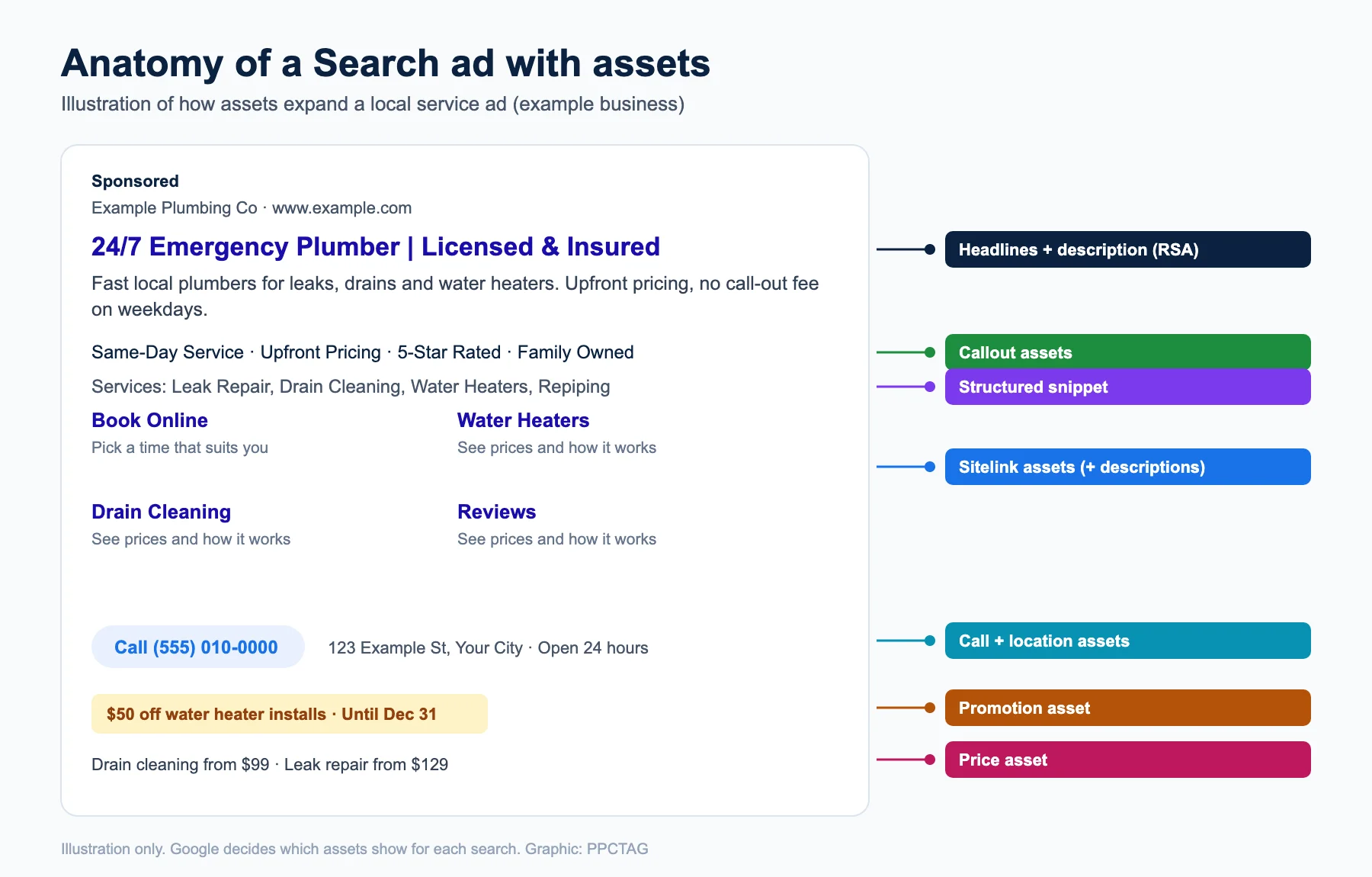
Google picks which assets to show for each search. That is why it recommends adding every asset that is relevant to your goals: more options give the system more ways to build a strong ad.
All Google Ads asset (extension) types
| Asset | What it adds | Limits and notes |
|---|---|---|
| Sitelink | Extra links to specific pages, with optional descriptions | Link text up to 25 characters; descriptions up to 35 each |
| Callout | Short benefit lines such as “Free estimates” | 25 characters each; up to 10 can show |
| Structured snippet | A header (e.g. Services, Types, Brands) and a list of values | Values up to 25 characters; add at least 3 |
| Call | A phone number or call button | Clicks on the call button are charged like a click |
| Location | Address, map, directions and call button | Needs a linked Google Business Profile |
| Price | Services or products with prices | Lets people browse prices from the ad |
| Promotion | A sale or offer, with dates and optional code | Good for seasonal offers |
| Lead form | A form people fill in without leaving Google | Shows on mobile and tablets |
| Image | Photos next to your ad | Use real photos of your work and team |
| Business name and logo | Your brand name and logo | Builds trust in the ad |
| App | A link to download your app | Android and iOS |
| Text disclaimer | Required legal terms | Always shown in the description line |
Sitelink extensions: what they are and best practices
Quick answer: Sitelinks are extra links under your ad that send people to a specific page, such as booking, pricing or a service page. Add at least 6 with descriptions, keep link text under 25 characters, and point each one to a different, relevant page.
What are sitelink extensions?
Google sitelink extensions (sitelink assets) add up to several extra links to your ad. Each has its own link text, two optional description lines and its own final URL. You can add them at the account, campaign or ad group level. Account-level sitelinks may show in all eligible campaigns.
Sitelink extensions best practices
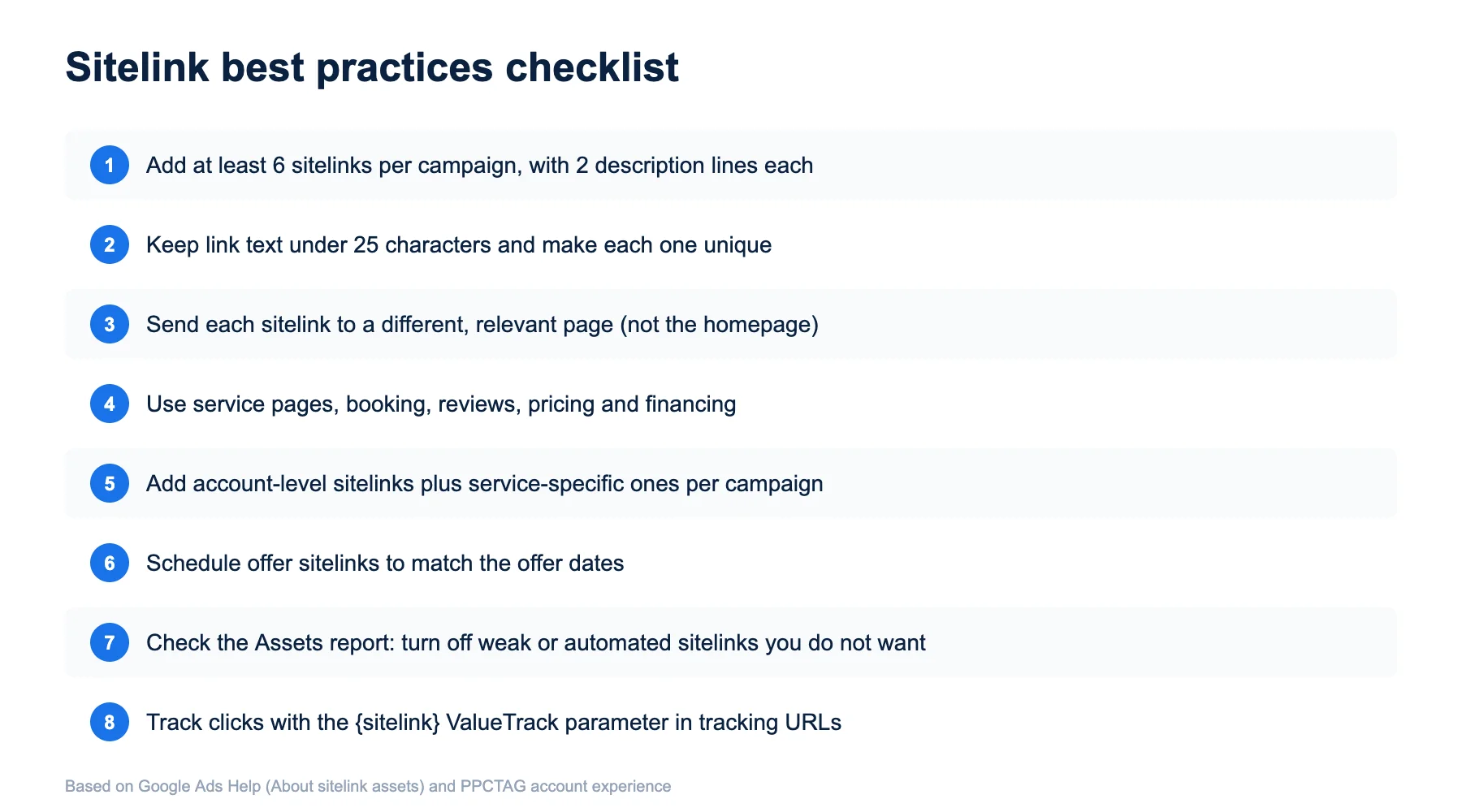
- Make every link text unique. Sitelinks with the same or similar text will not serve together.
- Write descriptions. Google may show them under each link, which makes the ad much larger.
- Do not send sitelinks to the homepage. Each should land on the page it promises.
- Match the schedule. If sitelinks are scheduled, make sure they run when your ads run.
- Layer them: a few universal sitelinks at account level (Reviews, Financing, Contact) plus service-specific ones per campaign.
- Track them with the {sitelink} ValueTrack parameter in your tracking template.
Sitelink examples for local service businesses
| Business | Sitelink text | Description lines |
|---|---|---|
| Plumber | Book a Plumber Online | Pick a time today | No call-out fee weekdays |
| HVAC | AC Repair Same Day | Licensed techs | Most brands repaired |
| Roofer | Free Roof Inspection | Photo report in 24 hours | Insurance help |
| Lawyer | Free Case Review | Speak to an attorney today | No fee unless we win |
| Dentist | New Patient Offer | Exam, X-rays and clean | Book online |
Callout extensions
Quick answer: Callouts are short, non-clickable lines that highlight benefits, such as “Licensed & Insured” or “24/7 Service”. Each can be up to 25 characters, and up to 10 can show depending on space.
Be specific: “Same-Day Service” and “Upfront Pricing” work better than “Great Service”. Add 6 to 10 at account or campaign level so Google can choose the best set for each search.
Structured snippet extensions
Quick answer: Structured snippets show a header from Google’s list (such as Services, Types or Brands) with a list of values. Use at least 3 values of up to 25 characters each.
Example for an electrician: Services: Panel Upgrades, EV Charger Install, Rewiring, Lighting, Generators. Example for a cleaning company: Types: Deep Cleaning, Move-Out Cleaning, Office Cleaning, Carpet Cleaning.
Promotion extensions (with examples)
Quick answer: Promotion assets show a sale or offer under your ad, with the discount, the item, optional dates and an optional promo code or minimum spend. Use them for real, time-limited offers.
| Promotion extension example | Occasion | Notes |
|---|---|---|
| $50 off water heater installs | None (custom dates) | Set start and end dates so it switches off automatically |
| 15% off AC tune-ups | Spring sale | Link to the tune-up page |
| Up to $500 off roof replacement | Black Friday | Add terms on the landing page |
Call and location extensions
Quick answer: Call assets add your phone number or a call button; location assets add your address, directions and a call button from your linked Google Business Profile. For phone-led businesses, these are the most important assets.
Important 2026 change: Google removed the option to create new call-only ads in February 2026, and existing call-only ads stop receiving impressions in February 2027. Move phone campaigns to responsive search ads with call assets now. Track calls properly with our call tracking dashboard guide.
Review extensions: what happened to them?
Many older guides still mention AdWords review extensions and review extension guidelines. Google retired review extensions in 2018, so you cannot add third-party review quotes as an asset anymore. Today the closest options are seller ratings (added automatically when you qualify, and clicks on them are not charged) and callouts such as “5-Star Rated”, which must be true and supported on your site.
Automated assets, AI Max and enhanced flexibility
Quick answer: Google adds account-level automated assets, such as dynamic sitelinks and callouts, when it predicts they will help. They need no setup and can be turned off in the Assets report. AI Max for Search can also change ad text and landing pages around your assets.
- Automated assets are on by default in most accounts. Check the Source column in the Assets report and turn off any that do not fit your business.
- Text customization (formerly automatically created assets) lets Google write extra ad text from your site.
- Enhanced flexibility lets unused headlines serve as link-based assets.
- AI Max for Search uses your sitelinks the same way, but text customization and final URL expansion can send clicks to other pages. See our AI Max for Search guide.
Which assets should a local business use?
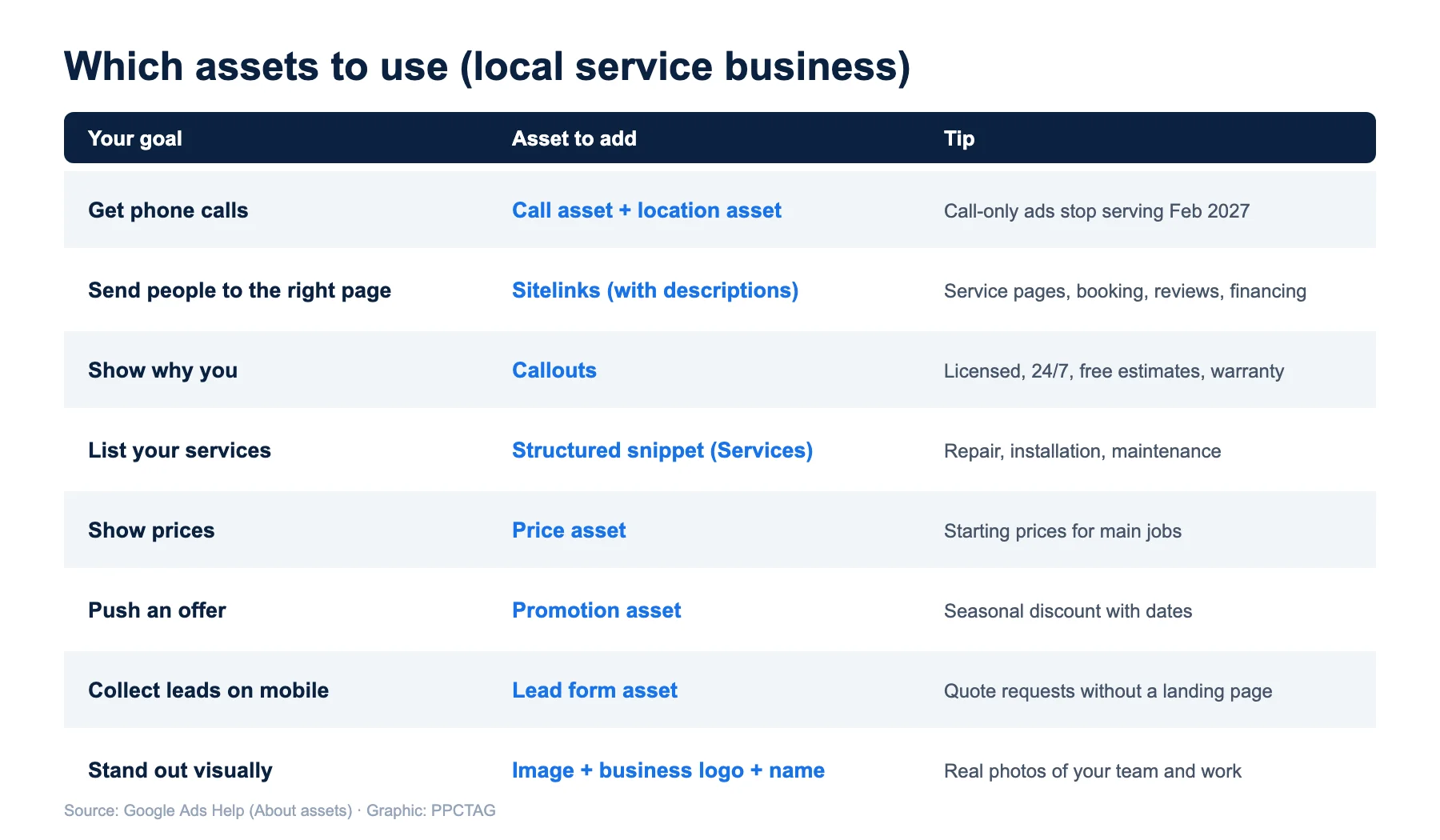
Minimum setup for most local service campaigns: call, location, 6+ sitelinks with descriptions, 6+ callouts, one structured snippet, business name and logo, and images. Add price and promotion assets when you have clear prices or offers. More in our Google Ads optimization process.
How to add assets (extensions) in Google Ads
- Sign in to Google Ads and open Campaigns → Assets.
- Click the plus button and choose the asset type, such as Sitelink or Callout.
- Choose the level: account, campaign or ad group.
- Fill in the text, URLs and optional schedule, then save.
- After a few weeks, check performance in the Assets report and replace low performers.
$10 Audit Report
Are your assets set up properly?
I check your assets, automated assets, call setup and ads, and send a clear list of what to fix first.
FAQs
What are Google Ads extensions?
Google Ads extensions, now called assets, add extra information to Search ads, such as sitelinks, callouts, structured snippets, a phone number, location, prices and promotions.
Are ad extensions free?
Yes. Adding assets is free. You pay only when someone clicks, and Google charges no more than two clicks per impression for an ad and its assets.
How many sitelinks should I add?
Add at least 6 sitelinks with descriptions per campaign, each with unique link text up to 25 characters and its own relevant landing page.
Why are my sitelinks not showing?
Assets only show when Google predicts they will help and your Ad Rank is high enough. Sitelinks with similar text, disapproved sitelinks or schedules that do not match your ads can also stop them showing.
Do review extensions still exist?
No. Google retired review extensions in 2018. Seller ratings and accurate callouts are the closest options today.
What replaced call-only ads?
Responsive search ads with call assets. New call-only ads cannot be created since February 2026, and existing ones stop serving in February 2027.