
Google has started the Google tag and Google Tag Manager unification. In a Tag Manager release note dated November 17, 2026, Google says every Google tag now becomes a Tag Manager container. A website that only has the Google tag (gtag.js) can now use Tag Manager features such as interface-based tagging, debugging and version control, without installing a separate container.
For most advertisers, nothing on the page changes. Google says the in-page behaviour of correctly installed Google tags stays the same. But three details matter to anyone running Google Ads for a local business: new install snippets no longer include the gtag('config') command, access to Tag Assistant data now follows your Tag Manager container permissions, and sites with an unsupported installation get the upgrade in January 2027. Google advises fixing those setups before then.
This guide explains what changed, how to check whether your site has the unsupported setup, how to fix it, how to optimize your Tag Manager container, and how to test that your Google Ads conversions still record afterwards.
Key takeaways
- Since November 17, 2026, each Google tag becomes a Tag Manager container. Google says correctly installed tags keep working the same way on the page.
- Unsupported setup: a
G-,AW-orDCID loaded through the Tag Manager snippet (gtm.js) together withgtag('config'). These sites get the upgrade in January 2027 and may see unexpected changes in tag behaviour. - The fix is either the standard Google tag (gtag.js) snippet, or a proper Tag Manager install with your
GTM-ID and the Google tag set up inside the container. - Tag Manager now offers an optional container optimization that sends data straight to Google destinations without loading extra gtag.js. Nothing changes until you publish it.
- Test every conversion action (calls, forms, bookings) in Tag Assistant after any change.
What is the Google tag and Tag Manager unification?
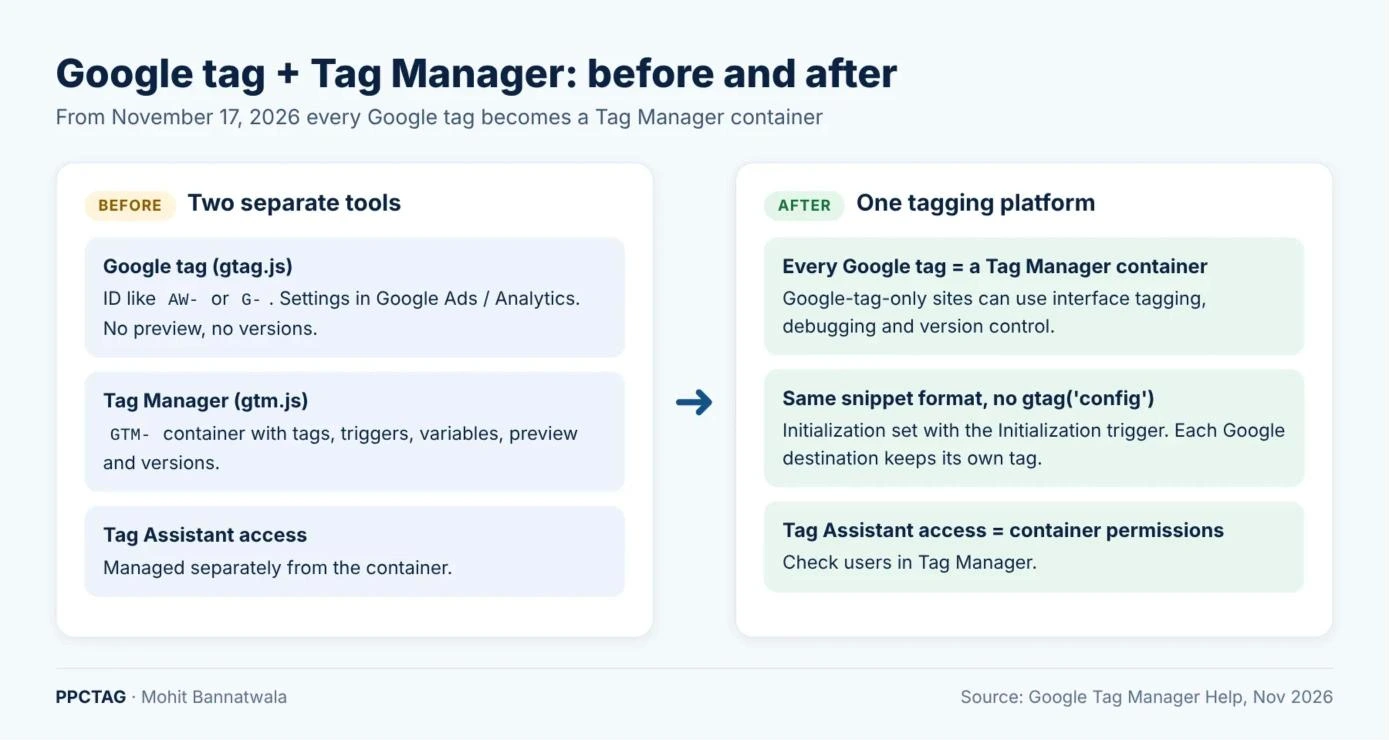
Quick answer: Google is bringing all of Tag Manager’s capabilities to the Google tag. Each Google tag becomes a Tag Manager container, every Google destination (such as your Google Ads account) keeps its own tag, and new install snippets for both products use the same format.
Until now there were two separate ways to measure a website for Google Ads:
- The Google tag (gtag.js): a snippet pasted into the site’s
<head>, with an ID such asAW-123456789for Google Ads orG-XXXXXXXfor Google Analytics. Settings are managed in Google Ads or Analytics. - Google Tag Manager (gtm.js): a container with a
GTM-ID. You add tags, triggers and variables in the Tag Manager interface, preview them and publish versions.
Google’s help page on the updates lists three parts to the change:
- Simplified interface. The Tag Manager Overview page now has a Settings section for container-wide settings, and an Advanced tab that holds Triggers, Variables, Templates and Folders. Google says no existing functionality is removed.
- Unification. Google tags are upgraded to fully capable Tag Manager containers. Sites with only the Google tag gain the option to use Tag Manager features. Google says this does not change how the tags behave on the page.
- Visual tagging. A no-code way to set up events and conversions by selecting elements on your website. Google says it is in beta for purchase conversions in Google Ads and will roll out for more use cases over time.
What changed and when
The unification did not arrive in one day. Google shipped it in steps through 2026, and each step is in the Tag Manager release notes:
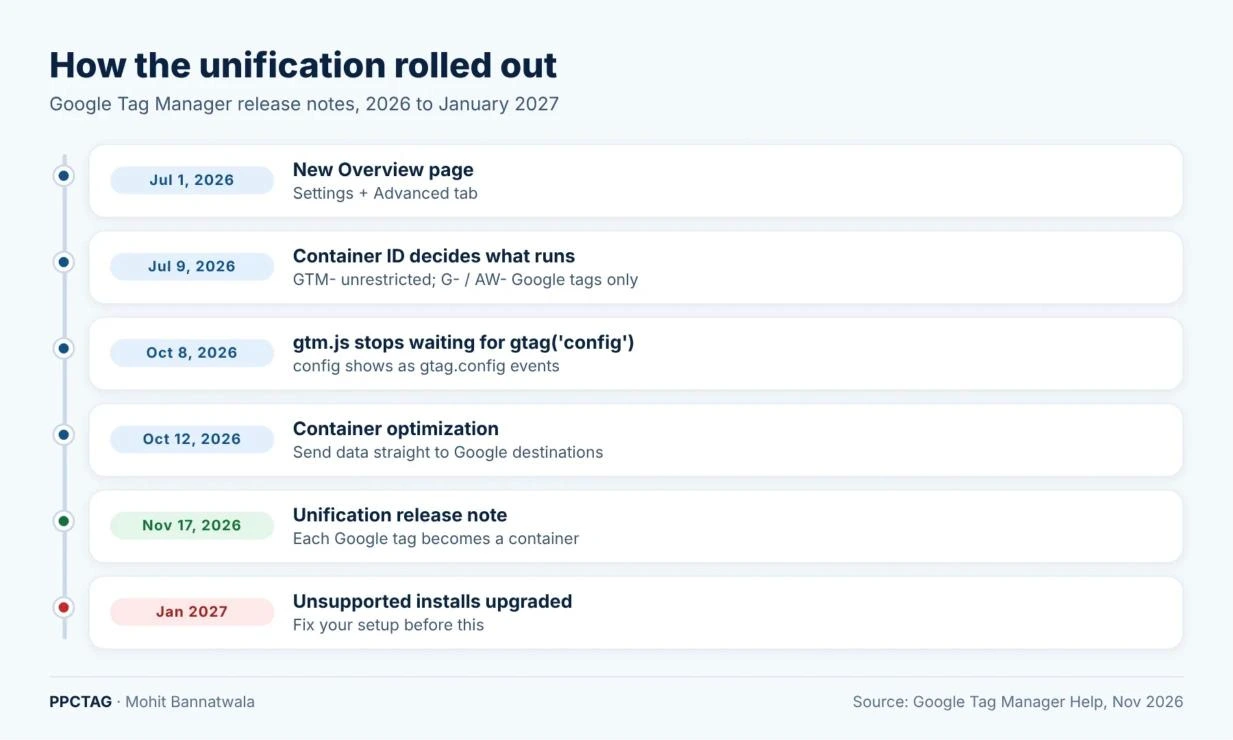
| Date | Change (Google Tag Manager release notes) | Why it matters for Google Ads |
|---|---|---|
| July 1, 2026 | Redesigned Tag Manager Overview page | Menus moved; Triggers and Variables now sit under Advanced |
| July 9, 2026 | The ID used to load a container now decides what it may run. GTM- containers are not restricted; G- or AW- IDs only run tags and variables provided by Google | Custom HTML tags (for example a call tracking script) will not run from a G- or AW- ID |
| October 8, 2026 | Tag Manager (gtm.js) snippets initialize on container load, regardless of gtag('config'). Config commands now appear in the dataLayer as gtag.config events | Tags using wildcard custom event triggers may fire on those events |
| October 12, 2026 | Container optimization: containers can send data directly to Google destinations without loading extra gtag.js | Faster pages and one place for Google Ads tag settings |
| November 17, 2026 | Each Google tag becomes a Tag Manager container; new snippets are the same and drop gtag('config'); Tag Assistant access follows container permissions | Check who on your team or agency can still see tag data |
| January 2027 | Unsupported installations receive the upgrade | Fix the install before then to avoid broken conversion tracking |
Google also notes that users on containers with the unsupported setup received an email. If you manage several client sites, search your inbox and your clients’ inboxes for messages from Google Tag Manager in the second half of 2026.
Who needs to act?
Quick answer: If your site uses the standard Google tag snippet, or a standard Tag Manager snippet with a GTM- ID, you don’t have to do anything. If a G-, AW- or DC ID is loaded through a gtm.js snippet and followed by gtag('config'), fix it before January 2027.
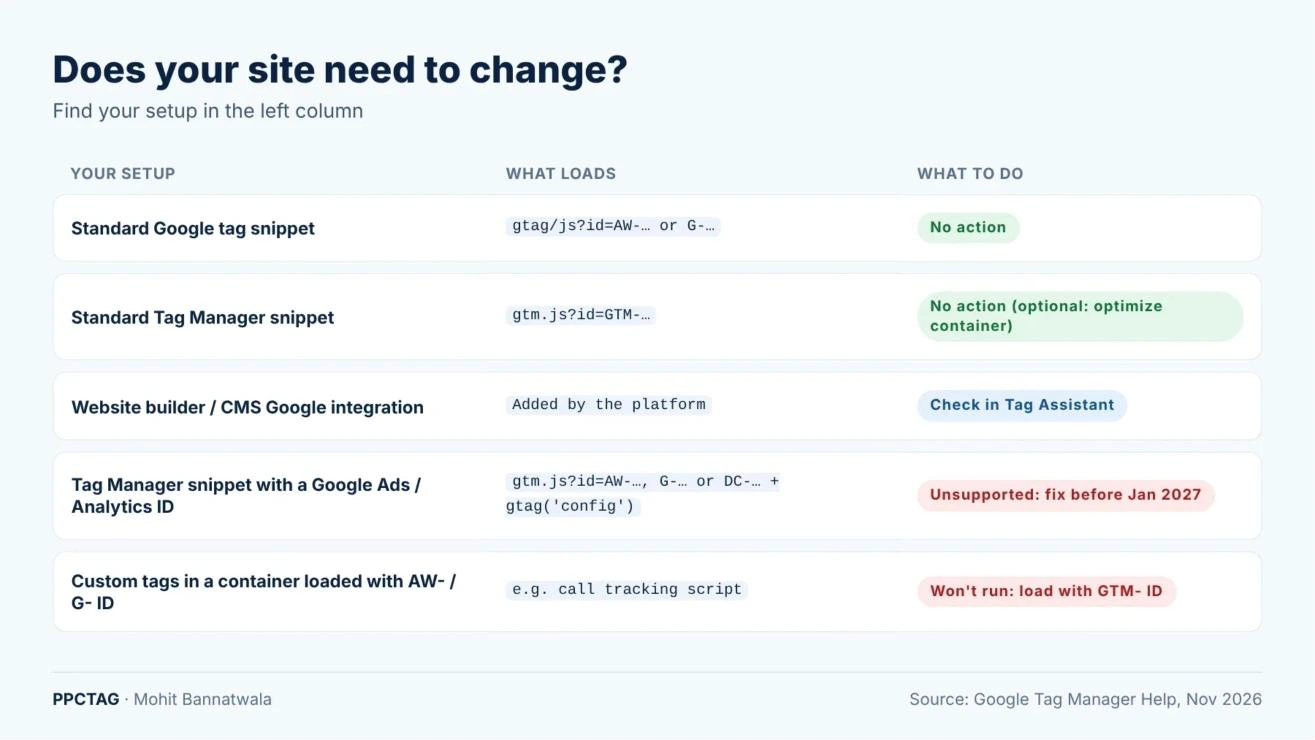
The unsupported setup usually comes from copying the Tag Manager snippet and putting a Google Ads or Analytics ID where the container ID should go, then adding a separate gtag('config') line. It has worked so far, but Google’s help page says Tag Manager snippets will no longer recognize or wait for gtag('config') commands, and sites using this pattern “may experience unexpected changes to their tag behavior.”
On small business websites we often find tracking code added in a theme’s header box or a plugin field years ago, by someone who has since left. That is exactly where this kind of setup hides, so it is worth checking even if you think your tracking is fine.
How to check and fix your Google tag setup
What you need before you start
- Access to the website’s code, theme header settings or CMS plugin where tracking code was added (or a developer who has it).
- Admin or standard access to your Google Ads account, so you can copy the Google tag ID and check conversion actions.
- Edit, approve or publish permission on your Tag Manager container, if you use one. Google says these are the permissions needed to start the optimization flow.
- Google Chrome, for Tag Assistant and Chrome Developer Tools.
- A list of your conversion actions (calls from website, form submissions, bookings) so you can test each one afterwards.
- A quiet hour. Avoid changing tracking during a big promotion or right before a bidding change.
Step 1: Find out how your Google tag is installed
Open your website in Chrome, then open View > Developer > Developer Tools, go to the Network tab and refresh the page. Type googletagmanager in the filter box. You will see one or more requests:
googletagmanager.com/gtag/js?id=AW-...or?id=G-...means the standard Google tag snippet.googletagmanager.com/gtm.js?id=GTM-...means a standard Tag Manager container.googletagmanager.com/gtm.js?id=AW-...,?id=G-...or?id=DC-...means the unsupported pattern.
You can also paste this line into the Console tab to list the Google scripts on the page:
[...document.scripts].map(s => s.src).filter(src => src.includes('googletagmanager.com'))Check the home page, a service page, your contact page and the thank-you page after a form submission. Different templates sometimes carry different code.
Step 2: Compare your code with the supported setup
Open the page source (View > Developer > View Source) and search for gtm.js and gtag('config'. Google describes this as the unsupported implementation: a Tag Manager snippet followed by a config command for a non-GTM ID.
<!-- UNSUPPORTED: Tag Manager snippet + gtag('config') for a non-GTM ID -->
<script>(function(w,d,s,l,i){ ... 'https://www.googletagmanager.com/gtm.js?id='+i+dl ... })(window,document,'script','dataLayer','AW-123456789');</script>
<script>
  gtag('config', 'AW-123456789');
</script>
And this is the supported Google tag (gtag.js) snippet, as shown in Google’s help page. Replace TAG_ID with your own ID:
<!-- Google tag (gtag.js) -->
<script async src="https://www.googletagmanager.com/gtag/js?id=TAG_ID"></script>
<script>
  window.dataLayer = window.dataLayer || [];
  function gtag(){dataLayer.push(arguments);}
  gtag('js', new Date());
  gtag('config', 'TAG_ID');
</script>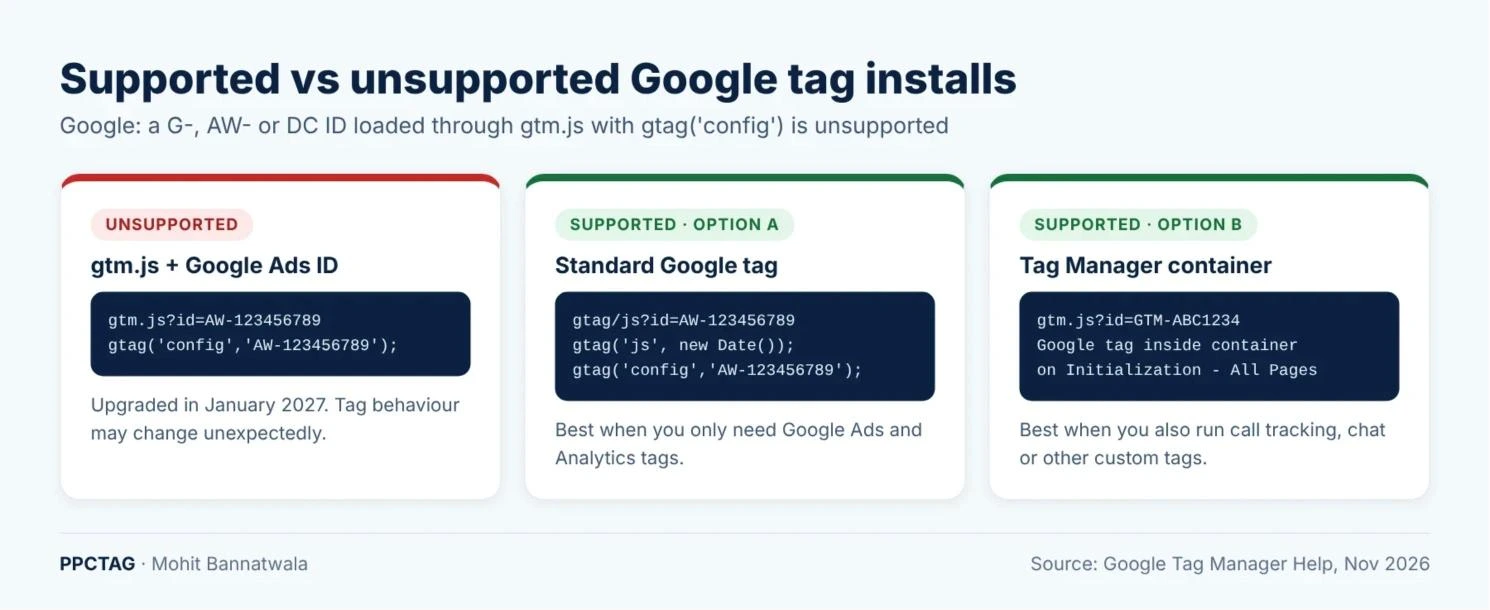
Step 3: Choose the right fix for your site
Google gives two supported options. Pick based on whether you use Tag Manager for anything else:
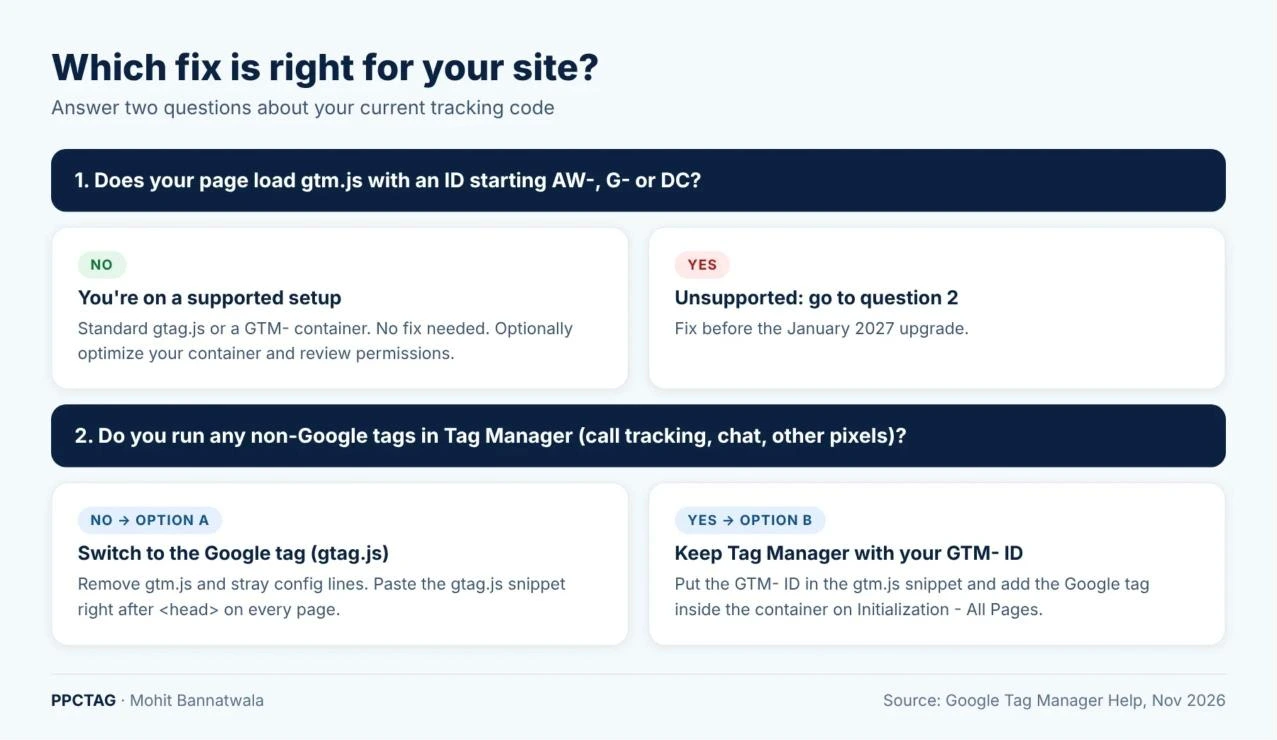
- Option A: you only need Google tags. If the site uses the Tag Manager snippet only to load your Google Ads or Analytics ID, switch to the standard gtag.js snippet (Step 4).
- Option B: you run other tags in Tag Manager. If the container also runs a call tracking script, a chat widget, a Meta pixel or other custom tags, keep Tag Manager. Replace the
G-,AW-orDC-ID in the gtm.js snippet with yourGTM-container ID, and set up the Google tag inside the container (Step 5).
Option B matters because of the July 9 change: a container loaded with a G- or AW- ID only runs tags and variables provided by Google. Custom HTML tags, such as many call tracking number-swap scripts, need a GTM- ID to run.
Step 4: Install the standard Google tag snippet (Option A)
- In Google Ads, click Tools and open Data manager.
- Under “Google tag”, find your Google tag and click Manage.
- Under “Your Google tag”, click the Google tag at the left side of the diagram. Under “Tag details”, copy the Google tag ID.
- Remove the old gtm.js snippet and any standalone
gtag('config')lines from every page, including theme header boxes and plugin fields. - Paste the standard gtag.js snippet from Step 2, with your ID, immediately after the opening
<head>tag on every page. - If you also use Google Analytics on the same page, you don’t need a second snippet. Google’s developer guide explains how to add another
gtag('config')line for a second ID.
Your existing Google Ads conversion event snippets (for example a gtag('event', 'conversion', ...) call on the thank-you page or on phone number clicks) keep working with the gtag.js snippet. Test them in Step 7.
Step 5: Keep Tag Manager with your GTM- ID (Option B)
- In Tag Manager, open your container and copy the container ID from the top bar. It starts with
GTM-. - On the website, change the ID inside the gtm.js snippet from your
AW-/G-ID to theGTM-ID. Remove the separategtag('config')lines. - In the container, add a Google tag with your Google Ads tag ID and set it to fire on the Initialization – All Pages trigger. Google recommends using the Initialization trigger to control initialization behaviour; it can also be set to wait for a config command if you need to keep a legacy setup.
- Check your Google Ads conversion tags and the Conversion Linker tag still have the right triggers.
- If you have tags on a Custom Event trigger with a wildcard or regex event name such as
.*, add a condition so they don’t fire ongtag.configevents, which now appear in the dataLayer. - Click Preview, check the tags fire, then click Submit to publish.
Step 6: Optimize your Tag Manager container (optional)
If you use Tag Manager, you will see a banner on the Overview page called “Optimize your Tag Manager container”. Google recommends it, but says no changes are made automatically. Optimizing moves your Google tag settings into the new Settings tab, lets the container send data directly to Google destinations without loading extra gtag.js, and links the container to your Google Ads and Analytics accounts.
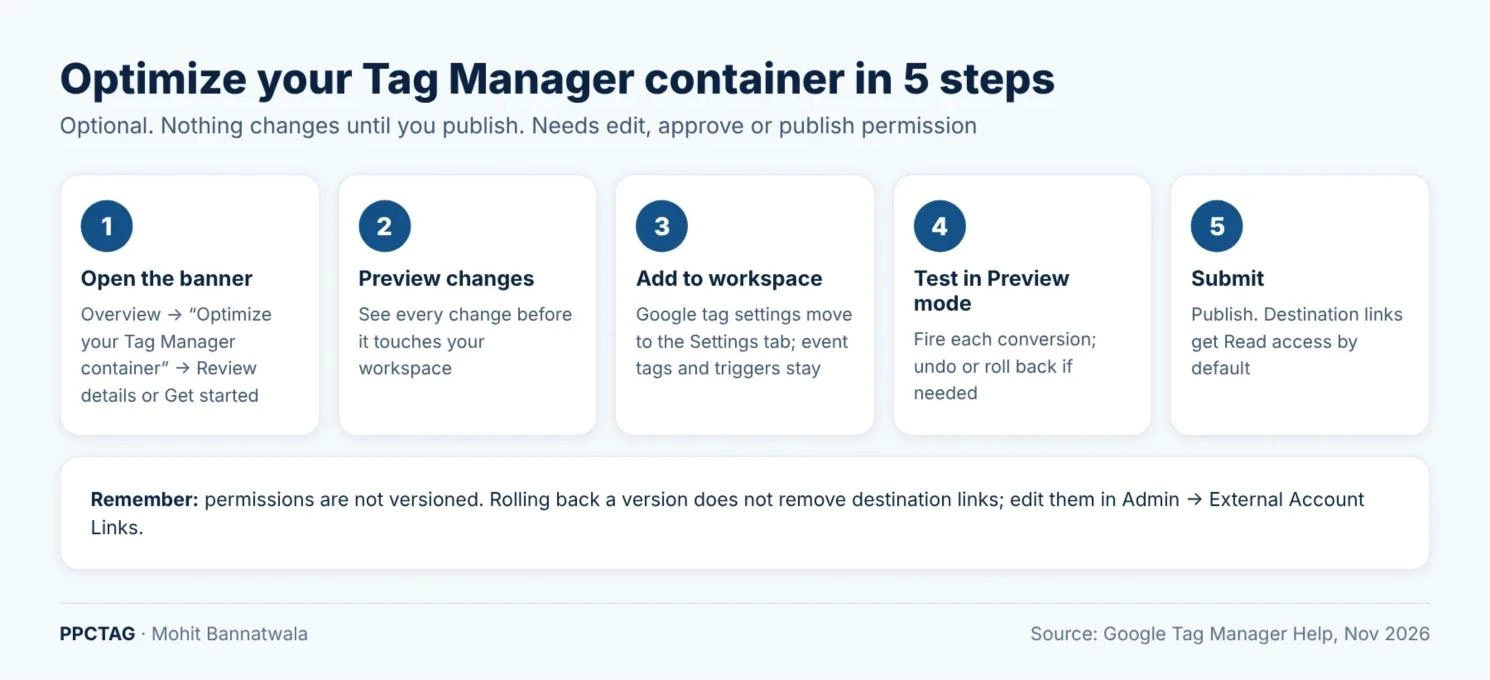
- Open the container’s Overview page. In the “Optimize your Tag Manager container” banner, click Review details if all your Google tags use the same settings, or Get started if they have conflicting settings. You can also start from Settings > Google Destinations: hover over “No” in the “Optimized” column and click Get Started.
- If your Google tags have different settings, choose which settings to keep for the consolidated setup.
- Click Preview changes to see everything that will change in your workspace.
- Click Add to workspace. Your event tags and triggers stay as they are.
- Test in Preview mode. If something is wrong, undo the change in the workspace, or roll back to a previous version if you already published.
- Click Submit to publish.
Two details to plan for. First, the account links to your Google destinations are created during optimization with “Read” access by default. Second, Google notes that permissions are not versioned, so rolling back a version does not undo them. You can change them at any time in the External Account Links section of the container’s admin settings.
Step 7: Verify that conversions still record
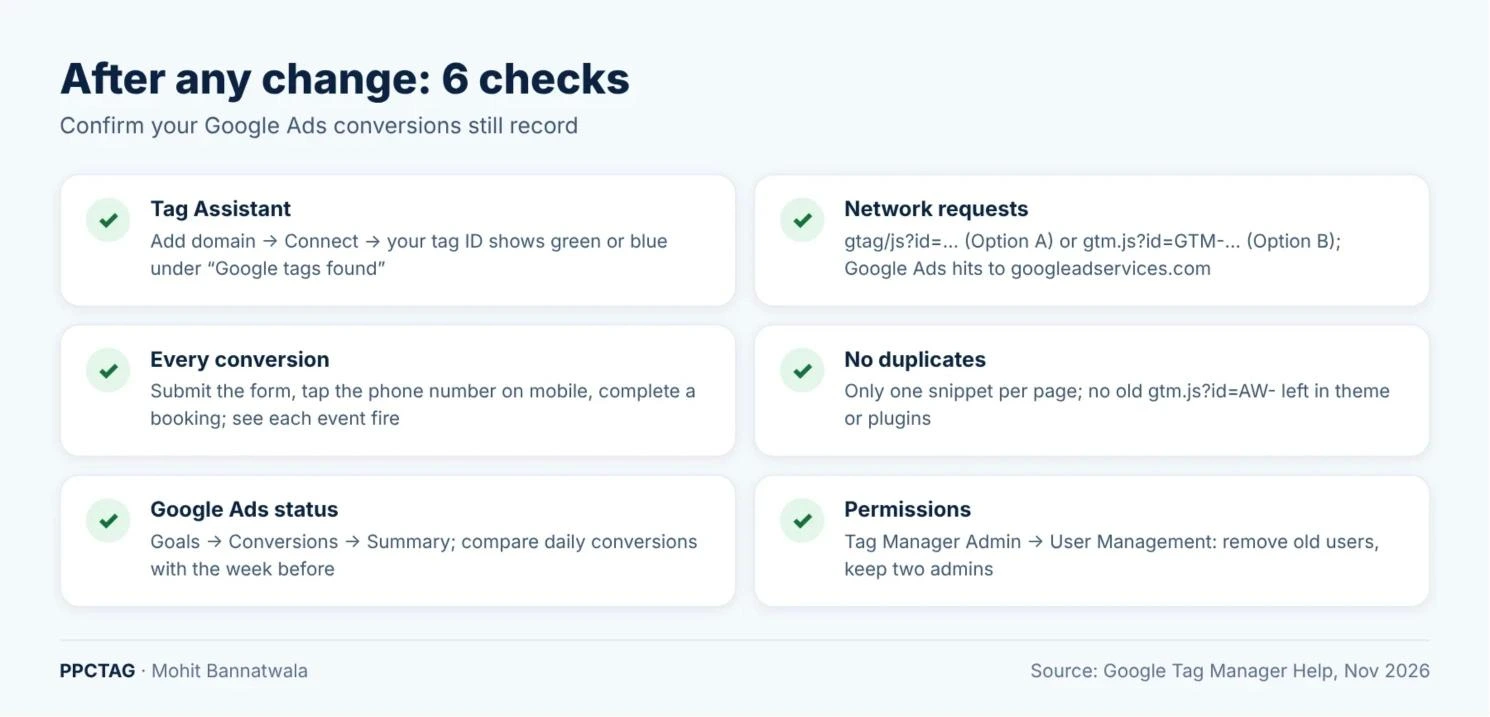
- Go to Google Tag Assistant (tagassistant.google.com), click Add domain, enter your website URL and click Connect.
- Under the Google tags found header, check that your tag ID appears with a green or blue status icon.
- In Chrome Developer Tools, Network tab, check that requests go to
googletagmanager.com/gtag/js(Option A) orgtm.js?id=GTM-(Option B), and that Google Ads hits go togoogleadservices.com. - Trigger every conversion on the site in the Tag Assistant session: submit the contact form, click the phone number on mobile view, complete a booking. Check the matching Google Ads conversion event appears.
- In Google Ads, open Goals > Conversions > Summary over the next few days and check each action’s status. Google’s conversion status can take time to update, so compare daily conversion counts with the week before the change.
Step 8: Review who can see your tag data
Google’s November 17 release note says Tag Manager permission settings now apply across the board, so access to data in Tag Assistant is managed through your container permissions. Open Admin > User Management in the container and check the list:
- Remove former staff and agencies you no longer work with.
- Give your current agency the access it needs to debug (at least Read). If they suddenly can’t see Tag Assistant data, this is the first thing to check.
- Keep at least two people with publish or admin access, so you are never locked out when someone leaves.
Visual tagging: no-code purchase conversions (beta)
Visual tagging lets you set up a conversion by clicking elements on your website in a Tag Assistant side panel. Google says it is currently in beta for purchase conversions in Google Ads. You need a Google Ads conversion action, an order confirmation page, a sitewide Google tag, edit access to the container and a way to place a test order.
The flow starts from Troubleshoot in the conversions summary, then “Fix conversions with a guided flow”. You place a test order, select the page elements for values such as transaction ID, order subtotal and currency, and publish the tags, triggers and variables it creates. Most local service businesses don’t take online payments, so this is mainly useful today for salons, clinics or trades that sell gift cards, products or prepaid bookings on their site. If it warns about an existing purchase conversion, stop and check, or you may count sales twice.
Limits and privacy
- No automatic fix. Google won’t optimize your container or fix an unsupported install for you before January 2027. The changes only apply when you publish them.
- ID decides what runs. A container loaded with a
G-orAW-ID only runs Google-provided tags and variables. Third-party and custom tags need aGTM-ID. - Permissions are separate from versions. Destination links and access levels created during optimization are not undone by a version rollback.
- Customer data. Visual tagging can capture customer name, email and phone for enhanced conversions. Only collect these with a clear privacy policy and the consent your region requires, and keep your consent banner working after any tag change.
- Visual tagging is beta and limited to purchase conversions in Google Ads for now. Google says more use cases will follow, without firm dates.
Common errors and fixes
| What you see | Likely cause | Fix |
|---|---|---|
Request to gtm.js?id=AW-... or gtm.js?id=G-... | Unsupported installation | Switch to gtag.js (Step 4) or use your GTM- ID (Step 5) |
| Call tracking number no longer swaps | Custom HTML tag in a container loaded with a G-/AW- ID | Load the container with its GTM- ID |
| A tag fires many times per page | Wildcard Custom Event trigger catching gtag.config events | Add a condition to exclude gtag.config |
| Tag ID missing or red in Tag Assistant | Snippet removed from some templates, or placed too low | Add the snippet right after <head> on every page |
| Agency can’t see Tag Assistant data | Access now follows container permissions | Add them in Admin > User Management |
| Conversions doubled after the change | Old and new snippets both on the page, or two purchase conversions | Remove the old code; keep one conversion per action |
| “Unable to access container” in visual tagging | No edit access to that container | Ask the Tag Manager admin for edit access |
What it means for local service businesses
For a plumber, dentist or home inspector, Google Ads bidding learns from the conversions your tag sends. If phone clicks or form submissions stop recording in January because of an old install, Smart Bidding sees fewer conversions, and cost per lead can rise before anyone notices. That is the real risk here, not the new interface.
- Home services: many sites run a call tracking script through Tag Manager. Make sure the container loads with its
GTM-ID so the script keeps working. - Dentists and clinics: booking widgets often send conversions through Tag Manager. Test a booking end to end after any change. See Google Ads for dentists.
- Home inspectors and other seasonal businesses: fix tracking now, in the quiet season, rather than in spring. See Google Ads for home inspectors.
- Agencies: check every client site in one pass with the Network tab method, and record the result in your client sheet.
If you report on calls and form leads together, our Google Ads and call tracking dashboard guide shows how to spot a sudden drop in conversions quickly.
PPCTAG’s take
This is a good change overall. Small businesses that only had the Google tag now get Tag Manager’s preview mode and version history for free, which makes tracking mistakes easier to catch and undo. The optional optimization should also make pages slightly lighter.
What we would do this month:
- Audit every site you run ads for. It takes about ten minutes per site with the Network tab. Unsupported installs are the only part with a deadline.
- Don’t rush the optimization banner. Do it on a weekday, preview it, and test each conversion before you publish.
- Clean up permissions. Tag Assistant access now follows the container, so old users matter more than before.
- Watch conversions for two weeks after any change, and compare with the same weekdays before the change.
FAQs
What is the Google tag and Google Tag Manager unification?
It is Google’s update that turns every Google tag into a Tag Manager container. Sites that only use the Google tag can now use Tag Manager features such as interface-based tagging, debugging and version control. Google says correctly installed tags behave the same way on the page.
Do I need to change anything on my website?
Only if you have an unsupported installation: a G-, AW- or DC ID loaded through the Tag Manager (gtm.js) snippet with gtag(‘config’) commands. Those sites get the upgrade in January 2027, and Google advises fixing them before then. Standard gtag.js and GTM- installs need no change.
How do I know if my Google tag installation is unsupported?
Open your site in Chrome, go to Developer Tools, Network tab, and filter for googletagmanager. If you see gtm.js loaded with an ID that starts with G-, AW- or DC instead of GTM-, the installation is unsupported. You can also check Tag Assistant for your tag ID.
Will my Google Ads conversion tracking stop working?
Google says the in-page behaviour of correctly installed Google tags does not change. Sites with the unsupported setup may see unexpected changes in tag behaviour, so fix the install and test every conversion action in Tag Assistant.
Do I have to optimize my Tag Manager container?
No. Google recommends it, but no changes are made automatically. Optimizing moves Google tag settings into the Settings tab, sends data directly to Google destinations and links your accounts with Read access by default. You can preview and roll back changes before and after publishing.
Who can see Tag Assistant data after the change?
Access to Tag Assistant data is now managed through your Google Tag Manager container permissions. Review the users in the container’s User Management settings and add your agency if it needs to debug your tags.
Not sure your conversion tracking will survive the January upgrade? We’ll check your tag setup, conversions and bidding signals.
Sources
- Tag Manager Help: Release notes for Google Tag Manager
- Tag Manager Help: Updates to Google tag and Google Tag Manager
- Tag Manager Help: Set up your Google tag installation correctly for gtag.js
- Tag Manager Help: Manage tagging behavior using the container ID
- Google Help: Optimize your Google Tag Manager container
- Tag Manager Help: Visual tagging in Tag Assistant
- Google for Developers: Set up the Google tag with gtag.js